The My Permissions tab controls access to common Needles functions such as Case Folder, Provider Folder, Functions, General Access, Name Detail, Calendar, Intakes, Messages, Directories, Mini Directories, External Programs, Search, and Case Access. Each grouping can be expanded to show one or more subgroups to further control staff access. You can easily give full access or no access to all the subgroups below a group by using the “set all” button situated above the Enabled, Add, Modify and Delete permission levels of each group. When you click the “set all” button, you have the option to set all main group permissions for a particular access level to “Allow”. "Inherit" or “Deny”. The Permissions Key & Reset and Net Permissions sections below provide for more details on inherited permissions.
If “set all” is used for Add, Modify or Delete, all check boxes under the “Enabled” level for that group will automatically be selected as well.
The Permissions Key, located on the My Permissions tab, serves as a read-only reference of the different check box states: Allow, Inherit from Permission Group(s) and Deny. When a permission level is intentionally selected or set to “Allow”, the check box will display as checked. When a permission level is intentionally deselected or set to “Deny”, the check box will display as unchecked. When a permission level is inherited from one or more permission groups where that staff is a member or set to “Inherit”, the check box will display as solid blue.
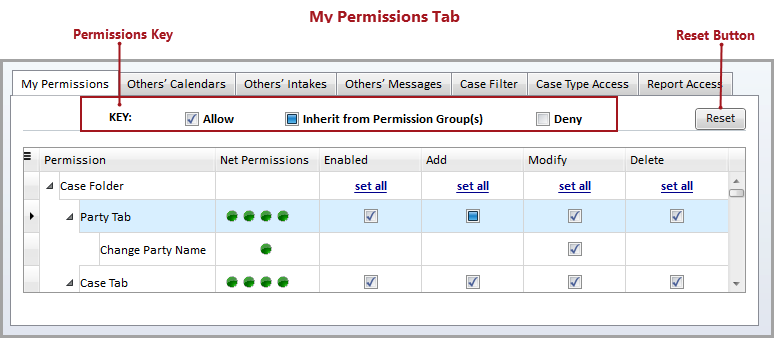
The Reset feature, also located on the My Permissions Tab, allows all individual staff permissions to be reset to the assigned Permission Group(s) in which that staff is a member. The group with the highest permission level for each function will be displayed in the My Permissions tab and can be visible using Net Permissions.
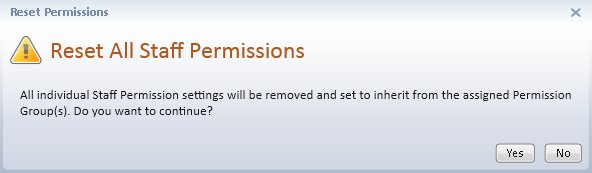
The Reset button is only visible when a staff is a member of at least one permission group and they have Modify permission for the Staff Directory.
To reset permissions,
The My Permissions grid is similar to the grid in the Permission Groups Directory in that it lists the Permission types and the four levels of access: Enabled, Add, Modify and Delete. Review Assigning Group Permissions for a detailed description of each function area and the access controlled by each permission level. Access set in a Permission Group can be copied to the Staff Directory Permissions for an individual staff when the staff is a member of that group. When a staff’s permissions are inherited from the permission group where they are a member, any changes made in the Group Permissions tab grid of the Permission Groups Directory will be reflected in the My Permissions tab grid for that staff in their Staff Permissions. The overall permission level of each inherited function is visible using the Net Permissions column.
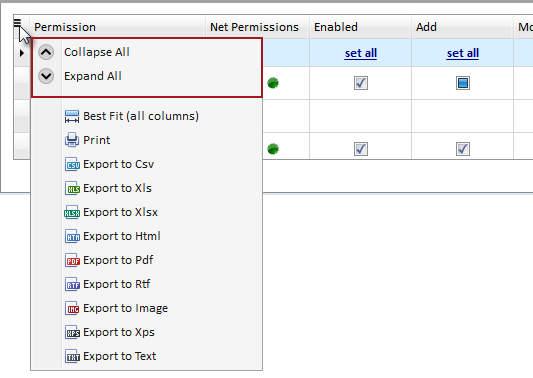
The My Permissions grid groups and subgroups can be
all collapsed or all expanded for easier navigation through the list.
Click on the hamburger icon  located in the upper left corner of the grid to display a pop-up menu
with the options to Collapse All or Expand All.
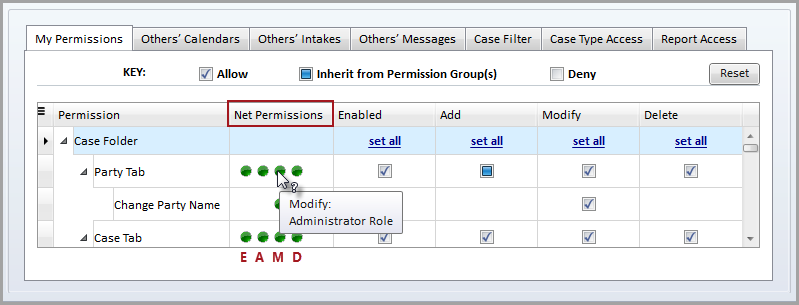
The Net Permissions column provides a static view of the overall permission for a Needles function using status icons. If the staff is a member of multiple permission groups, the Needles function with the highest level of all the groups for each permission level will be displayed in the Net Permissions column. The status icon will display solid green when the permission level check box for a particular Needles function is intentionally selected (checked), set to “Allow” or inherited from a group where it is selected (checked). The status icon will display clear when the permission level check box for a particular Needles function is intentionally deselected (unchecked), set to “Deny” or inherited from a group where it is deselected (unchecked).