
The Provider Folder group controls access to each tab in a Provider Folder along with any special function available on an individual tab. Select the Set All option above the Enabled, Add, Modify and Delete columns to give full access or no access to all the areas contained within the Provider Folder.
If “set all” is used for Add, Modify or Delete, all check boxes under the “Enabled” level for that group will automatically be selected as well.
Below is a list of the permissions that can be set to control access to the Provider Folder in the Needles program.
The Provider Tab permissions are displayed below. Granting access to provider information and in particular, the name, address and phone information for a provider, is particularly critical when a firm is synchronizing names in their system with Outlook, QuickBooks or other third-party product with which they may be integrating. This section controls access to the Provider Tab in the Provider Folder and the Replace Provider function.
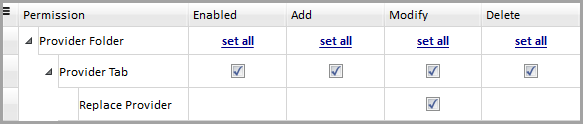
Setting all options as shown above will grant the following permissions:
A separate permission exists for access to Name Details information such as addresses, phone numbers and online account information. Name Details permissions will need to be granted in order to add this type of information for a name.
The permissions to the Notes Tab are displayed below. This section controls access only to the notes in a provider folder entered by that Staff.

Setting all options as shown above will grant the following permissions:
The permissions to the Documents Tab are displayed below. This section controls access to the Documents Tab in a case.

Setting all options as shown above will grant the following permissions:
The permissions that control access to the Provider Associations Tab are displayed below. In order to add or modify association group information for a provider, permission will need to be granted to the Associations Tab.

Setting all options as shown above will grant the following permissions: