There are several types of fields used in Needles that contain advanced functionality. The following special field types are described in more detail below.
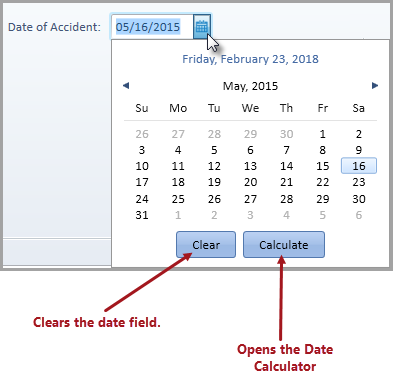
A date can be manually entered into the date field. Date fields in Needles display a Calendar icon at the end of the field. Clicking on the Calendar icon will open the Date Navigator window to assist in selecting the date.
The Date Navigator Window includes several functions to assist the user in finding and selecting the correct date needed. When clicking on the calendar icon in a date field that is already populated with a date, the navigator window will display the month for the existing date (as shown above). If the field is empty, the current month will display. To use the Date Navigator Window
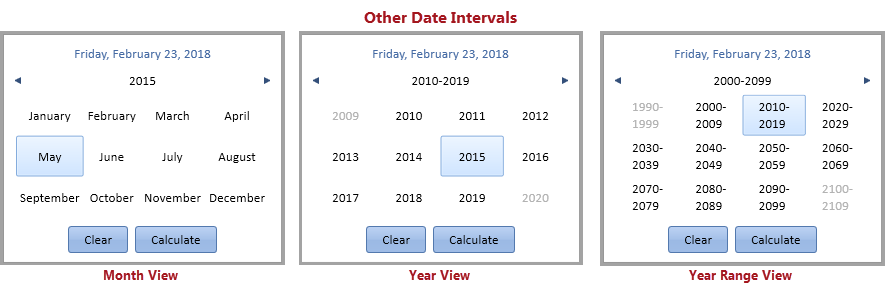
 navigation arrow
to move backward through the selected date intervals.
 navigation arrow to move forward through
the selected date intervals.
An Edit Names Field can be identified by the Edit button located at the end of the field. Clicking on the Edit button will open a detail window for specific information to be entered. Examples of Edit Fields can be found on the Party tab for entering the Party Name or the AKA Name fields.
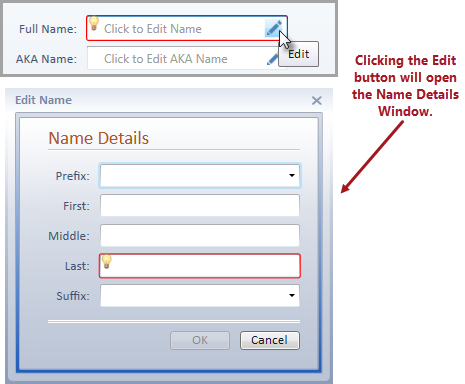
Enter the information into the detail fields, and click OK to populate the field with the detail information.
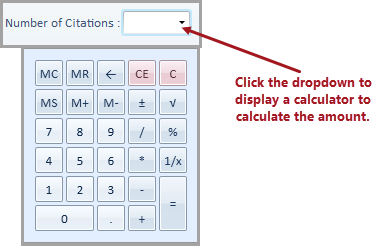
Number fields are displayed with decimal formatting. A calculator displays when clicking the dropdown icon at the end of a number field. The results of the numbers and functions entered on the calculator will display in the field.
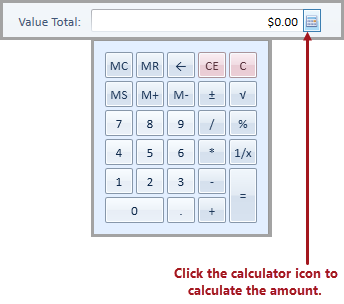
Money fields are similar to number fields, however, they are displayed
with US currency formatting based on the user's Windows regional settings.
A calculator displays when clicking the Calculator
icon  at the end of a money field. The results of the numbers and functions
entered on the calculator will display in the field.
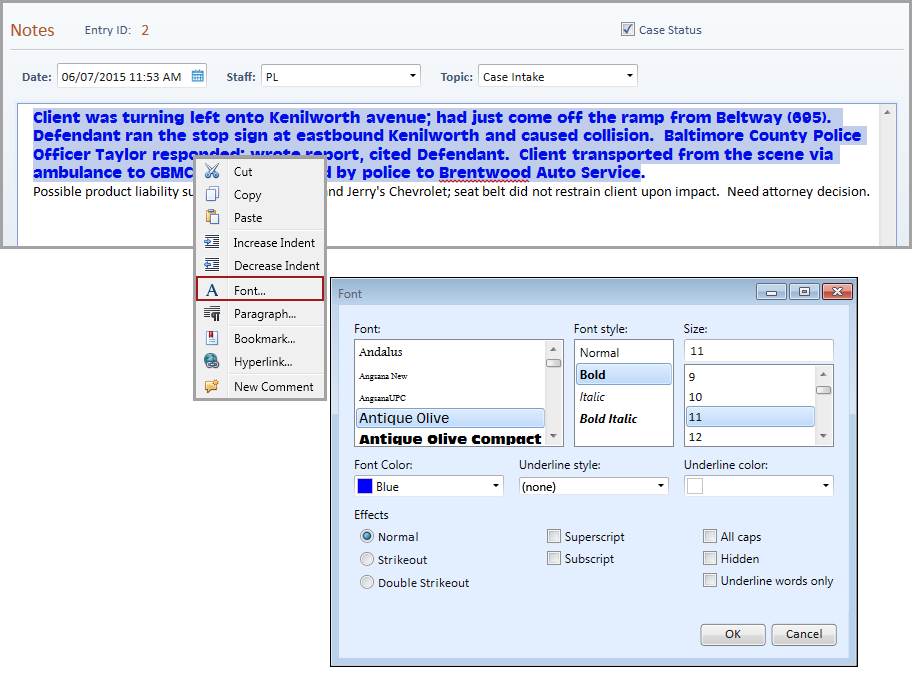
If the Enable Rich Text option has been selected in the Default Firm Preferences, additional formatting features will be available when entering text in notes fields (Case Notes, Value Notes and Provider Notes). The following right-click menu will display when right-clicking on text in an RTF Text Field, allowing for the font to be changed, additional formatting applied, and bookmarks or hyperlinks to be added.
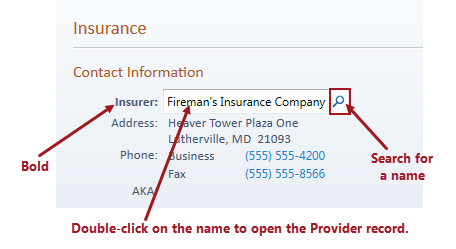
Searchable Names Fields can be identified
by the bold label and a Search
icon  at the end of the field. The following
features are available in this type of field:
 to enter the new name
information.
When creating user defined fields, the Searchable Names field type should be used if the response is a person or entity which is already entered into the case, or a name that is in your Needles names directory in another case. It should also be used if you wish the name to become part of your names directory, thereby assisting in conflicts searches. If the name will never be relevant in connection with any other case in Needles, consider using the alphanumeric field type.
The following types of user defined fields are available for use when designing user defined screens while customizing the Needles system.
| Field Type | Description |
Alphabetic |
Alphanumeric format (letters and numbers), up to 32,000 characters. |
Check Box |
Displays box that can be checked for an affirmative response. |
Companion Group |
Displays a dropdown field with all active entries from the Companion Groups Directory. |
Allows for a date to be entered in MM/DD/YYYY format. |
|
Document |
Displays a dropdown field listing all entries from the Document tab of the active case. |
Gender |
Displays a dropdown field listing the options: Unknown, Male, Female |
Hyperlink |
Alphanumeric field allowing a URL or filepath to be entered that will become a hyperlink. |
Numeric field displayed in currency format with a default length of 11. Maximum length allowed is 20. |
|
Name |
Searchable names field allows for a name to be searched and selected from a party or provider name already in the Needles Names directory. |
Numeric format with two places following the decimal. Number fields have a maximum length of 14. |
|
Rating |
Displays a dropdown field listing the options: 0 - Unacceptable, 1 - Poor, 2 - Fair, 3 - Good, 4 - Very Good, 5 - Excellent. |
Staff Name |
Displays a dropdown field listing all active entries from the Staff Directory. |
State |
Displays a dropdown list of states from the Zip Code Directory. |
Time |
Displays a time field in HH:MM format. The time format will display according to the user's Windows Regional Settings (i.e., Military, AM/PM). |
Yes/No |
Displays a dropdown field listing the options: Yes, No, ?, or N/A. |
User Mini Directory |
Creates a field where responses are selected from a user mini directory defined for this purpose. |
Appointment Status |
Displays a dropdown field with all active entries (Status Color and Status) from the Appointment Status Mini Directory. |
Appointment Type |
Displays a dropdown field with all active entries from the Appointment Type Mini Directory. |
Called Back Time Frame |
Displays a dropdown field with all active entries from the Called Back Time Frame Mini Directory. |
Case Document Category |
Displays a dropdown field with all active entries from the Case Document Categories Mini Directory. |
Case Note Topic |
Displays a dropdown field with all active entries from the Case Note Topics Mini Directory. |
Class Code |
Displays a dropdown field with all active entries from the Class Codes Mini Directory. |
Credit Account |
Displays a dropdown field with all active entries from the Credit Account (Check Export) Mini Directory. |
Debit Account |
Displays a dropdown field with all active entries from the Debit Account (Check Export) Mini Directory. |
How Resolved |
Displays a dropdown field with all active entries from the How Resolved Mini Directory. |
How Reviewed |
Displays a dropdown field with all active entries from the How Reviewed Mini Directory. |
ID Code |
Displays a dropdown field with all active entries from the ID Codes Mini Directory. |
Insurance Type |
Displays a dropdown field with all active entries from the Insurance Type Mini Directory. |
Negotiation Type |
Displays a dropdown field with all active entries from the Negotiation Type Mini Directory. |
Paid By |
Displays a dropdown field with all active entries from the Paid By Mini Directory. |
Paid To |
Displays a dropdown field with all active entries from the Paid To Mini Directory. |
Party Role |
Displays a dropdown field with all active entries from the Party Role Mini Directory. |
Prefix |
Displays a dropdown field with all active entries from the Prefix Mini Directory. |
Provider Document Category |
Displays a dropdown field with all active entries from the Provider Document Categories Mini Directory. |
Provider Note Topic |
Displays a dropdown field with all active entries from the Provider Note Topics Mini Directory. |
Provider Role |
Displays a dropdown field with all active entries from the Provider Role Mini Directory. |
Provider Specialty |
Displays a dropdown field with all active entries from the Provider Specialty Mini Directory. |
Review Type |
Displays a dropdown field with all active entries from the Review Type Mini Directory. |
Staff Group |
Displays a dropdown field with all active entries from the Staff Group Directory. |
Suffix |
Displays a dropdown field with all active entries from the Suffix Mini Directory. |
Task |
Displays a dropdown field with all active entries from the Tasks Mini Directory. |
Value Code |
Displays a dropdown field with all active entries from the Value Codes Mini Directory. |
Value Note Topic |
Displays a dropdown field with all active entries from the Value Note Topics Mini Directory. |
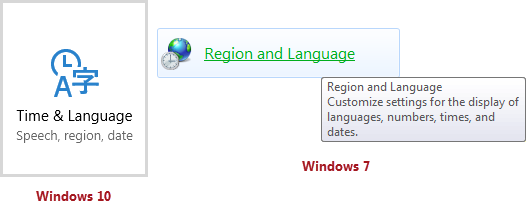
To change the format of your Windows Regional Settings controlling date format, time format, currency formats, etc.,