 at the end of any Needles date
field, and clicking the Calculate button at the bottom of the Date
Navigator, or
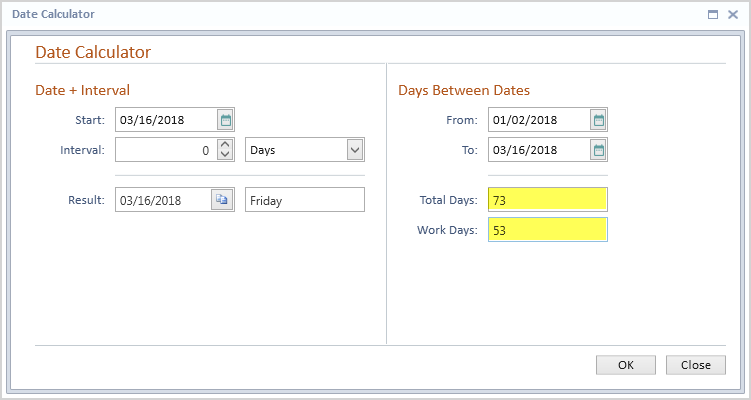
Needles includes a Date Calculator that can be used to calculate date values using any Date field in the Needles application or a new date that is entered into the calculator.
The Date Calculator can be accessed by either
at the end of any Needles date
field, and clicking the Calculate button at the bottom of the Date
Navigator, or 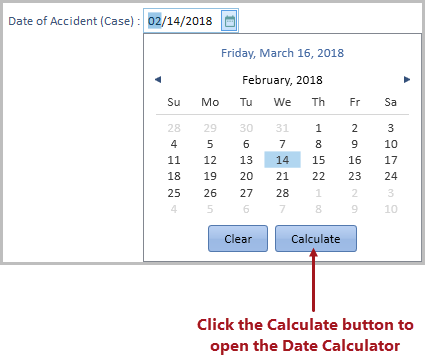
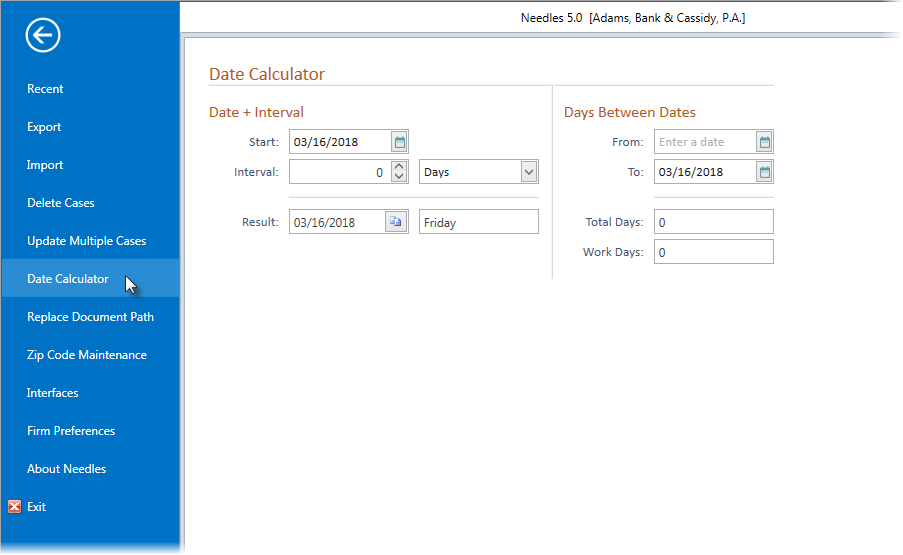
On the left-hand side of the Date Calculator is the option to calculate dates using various intervals, such as days or weeks. To calculate a date using intervals,
When accessing the Date Calculator from a date field, the Start Date will automatically be populated with the date from that date field and will be used as the reference point at which to start the calculation. When accessing the calculator using the File Menu option, the Start Date will populate with the current date. If desired, enter a different Start Date.
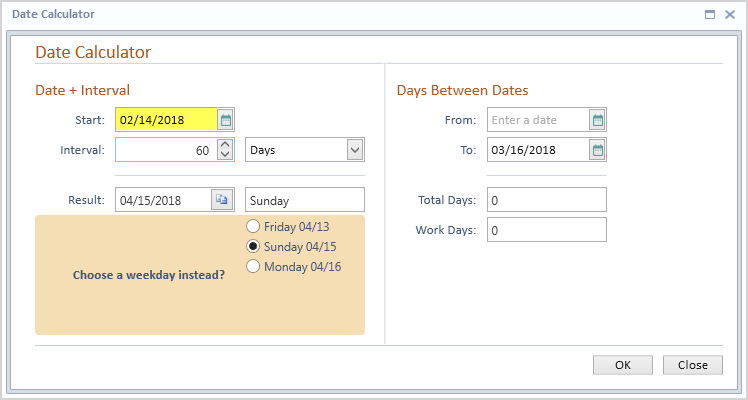
Select the type of Interval from the dropdown. Available intervals include Days, Work Days, Weeks, Months, Quarters, and Years.
Enter the number of intervals (this can be a positive or negative number). The calculated result will display the date and day of the week below the Interval selection.
When the date displayed in the Result field is a Saturday or Sunday, an option displays offering a choice of choosing a weekday (either the preceding Friday or the following Monday). Select the desired weekday option, if applicable.
Clicking on the Copy button  at the end of the Result date field will place the date onto your
clipboard where it can then be pasted into another Needles date field
or into another application.
If the calculator was accessed from a date field, click the OK on the calculator window to automatically paste the Result date into the date field.
Click on Close to exit the calculator.
On the right-hand side of the Date Calculator is the option to calculate the days between two dates. To calculate the days between two dates,
Accessing the Date Calculator from a date field or from the File Menu.
Enter
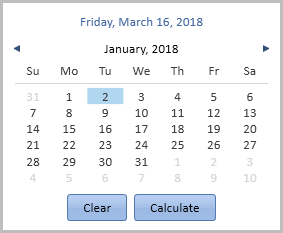
the beginning date of the date range to be calculated in the From Date field. Clicking on the
Date Navigator icon will
allow a date to be selected from the Date Navigator window.
The current date will automatically populate
the ending date of the date range in the To Date field. If desired,
enter a different date in the To
Date field as the ending date of the date range to be calculated.
Clicking on the Date Navigator icon will allow
a date to be selected from the Date Navigator window.
The Total Days and Total Work Days will be calculated and displayed below the date range selected.
Click on Close to exit the calculator.