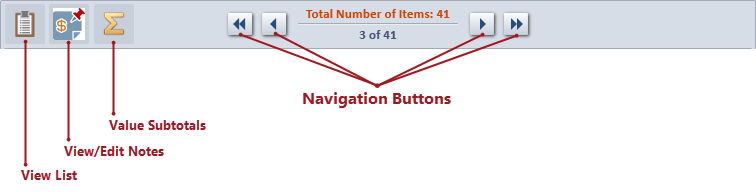
Once a Value entry is saved, the Header Band across the top of the Value item will display several options. Return to the Value List View using the View List button. To add new or edit existing Value Notes attached to the Value item, click on the View/Edit Notes button. When a note has been added for a Value item, a red pushpin will display on the View/Edit Notes button. The Value Subtotals button will open the Value Subtotals Window. Navigation buttons are available to easily page through the Value items attached to a party using the navigation arrows. The total number of items and the number of the current item is displayed.
A user will need Add permissions to the Value tab in order to add Value items to a case.
The View/Edit Notes and Value Subtotals buttons will be disabled until a new Value item is saved. The Value Detail View contains fields organized into the following group sections: Provider Information, Description, Transaction Summary, Calculate Value Amount, Transaction Details, and User Defined. The corresponding fields in each section are described below.
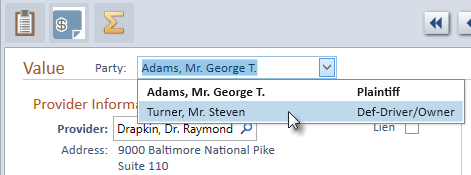
Value items are attached to a party in the case. The current party will display by default in the Party field of a new Value item. A different party can be selected by clicking on the Party dropdown at the top of the Value item to display the list of parties in the case with their party role. Parties marked Our Client are displayed in bold.
To add a new Value item,
 on the Case ribbon.
A blank Value item will display.
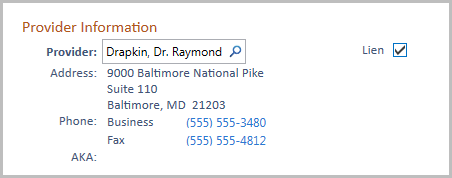
The Provider field is required
in order to save a Value item and will display a red validation border
and icon until a Provider name is entered. Mouse over the validation icon
 to display the reason for the error.
The Provider field is a searchable
names field allowing for a name to be searched in Needles to select
an existing provider or add a new name to your database.
 button.
Double-clicking on the name in the Provider field will open the Provider Folder.
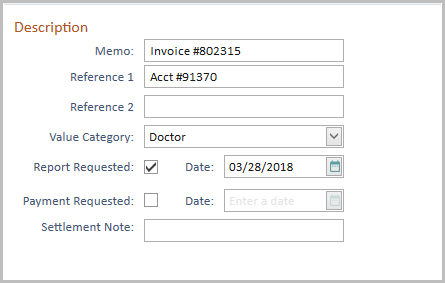
If using the check or deposit request feature in Needles, the Memo field will be exported with the check or deposit information to the integrating accounting program.
Additional Reference 1 and 2 fields may be used to track further details (e.g., invoice #, account #, purchase order numbers, etc.). These field titles can be renamed in the Default Info tab in Firm Preferences. The Reference 1 and 2 field titles can also be designated by Value Code in the Value Code Mini Directory, allowing for a different label to be displayed depending on the Value Code selected. The Reference Label from Firm Preferences will be displayed if there is no Reference Label specified in the Value Code Mini Directory.
Use the Value Category field to further categorize a Value item for more detailed reporting. Categories are defined in the Value Categories Mini Directory.
The Report Requested check box can be used to track if a report detailing services provided has been requested.
The Report and Payment Requested fields are used to generate a report , such as Cases with Report Requested on Value Tab which lists providers who have not satisfied the request for reports. You may wish to use one of the user defined tabs or user defined Value fields for more detailed tracking of records and reports requests instead.
A Settlement Note text field is available to enter text up to 20 characters that can be used in documents, forms or reports. When using the QuickBooks check request interfaces, the Settlement Note can be added to the Memo or Voucher portion of a check request.
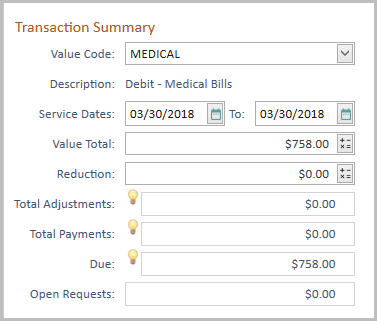
The Value Code identifies the type of expense being tracked, such as a medical bill, lost wages, or a case expense for which the firm should be reimbursed. Depending upon the value code selected, the value item will be treated as a debit or credit. The list of codes are defined in the Value Codes Mini Directory.
The Description will automatically populate from the Value Code Mini Directory based on the Value Code selection for the item.
The Service Date range represents the dates the services were rendered by the provider that are reflected in the invoice or bill.
Most value reports filtering on the Service Date are using the Service From Date field.
 to calculate the total value, if needed. The fields in the Calculate Value Amount section
can also be used to calculate the total value of an item.
The last four fields in the Transaction Summary section are read-only. Their values are determined from other fields.
The Total Adjustments field
is a read-only field that is a calculated sum of all adjustment items
from the Transaction
Details window. Mouse over the icon
in the Total Adjustments field to display a tooltip explaining the calculation.
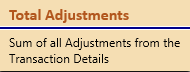
The Total Payments is a
read-only field that is a calculated sum of all payments from the Transaction Details
window. Mouse over the icon in the Total Payments field
to display a tooltip explaining the calculation.
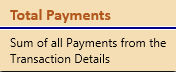
The Due field is a read-only
field that is calculated using the following formula: Value Total – (Reduction
+ Total Adjustments + Total Payments). Mouse over the
icon in the Due field to display a tooltip explaining the calculation.
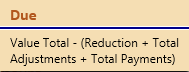
If a check has been requested for the value item but has not yet been exported, the amount of the pending request is displayed in the Open Requests field.
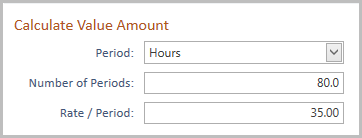
Use the fields in the Calculate Value Amount section to calculate and populate the Total Value of an item. This is particularly helpful when calculating lost wages or manually entering a Time item in a case. Use the Period, # Periods, and Rate/Period fields to calculate periodic values, such as lost wages, rental car charges or attorney fees. If periodic payments are not involved or you wish to enter only the amount due, leave these fields blank and enter the total manually in the Value Total field.
If using the Needles Time Tracking feature to send time entries to the Value tab, the Period, # Periods and Rate/Period fields are sent automatically from the timecard and are used to calculate the billing amount for the time entry in the value item.

A list of transactions from the Value
Transaction window will display in the Transactions Details section.
The transaction details section is read-only, however transactions can
be added, modified or deleted by clicking the Add icon  or double-clicking a transaction item to access the Value Transactions
window.
Amounts entered in the Transaction Details will cause the Total Adjustments, Total Payments, and Due fields to be recalculated.
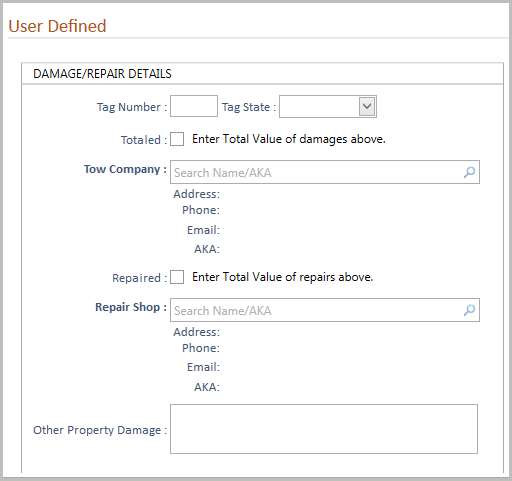
If a Value user defined screen has been designed for the selected Value Code in this case type, the User Defined section will display additional fields.