
Value Subtotals displays a quick summary of all Value items by Value Code. The window can be accessed from either the Value tab list view or detail view by clicking the Value Subtotals button on the Header Band.
The Value Subtotals window will display a grid showing the value subtotals by Value Code for the active Party in the current Case Folder. The Value Subtotals grid contains subtotal amounts for the following columns: Total Value, Reduction, Adjustments, Payments, and Due amounts that have been logged for each Value Code. Below is an example of the Value Subtotals window for the current Party.
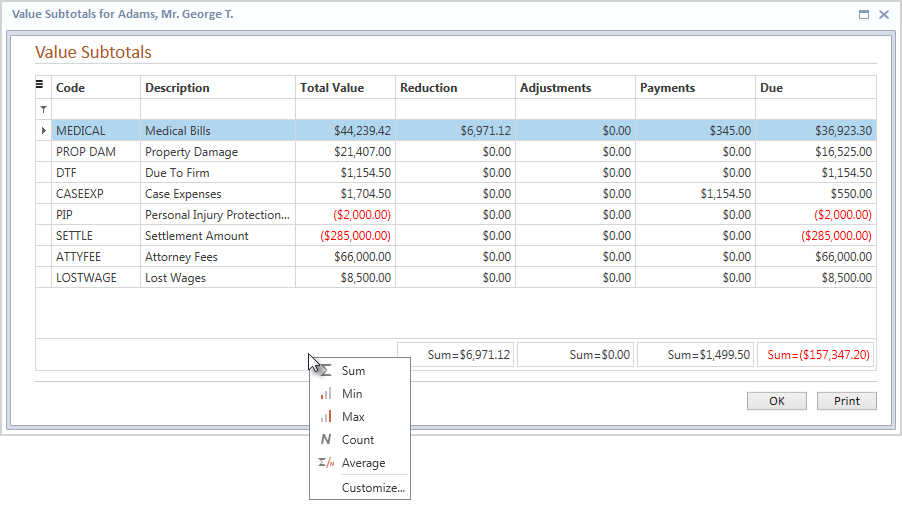
While the grid rows are read-only, calculations on columns can be added by right-clicking on the summary band at the bottom of the window. A pop-up menu will display several summary options. The Reduction, Adjustments, Payments, and Due columns already display a calculated Sum field in the summary band. Right-clicking a calculated field will also display the pop-up menu. Select the desired calculation option(s) to expand the current calculated field.
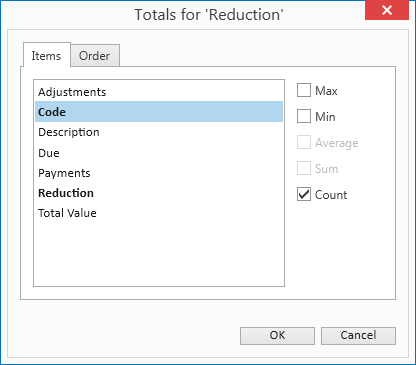
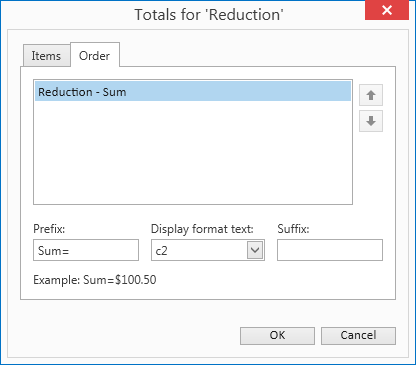
The Customize option allows additional items to be added from the grid to the selected column. For example, you can add the total count of Codes where Value items have been added into the Reduction calculated field. The Customize window also allows you to order the list of calculations, edit the Prefix and Suffix text, and select the display format of a calculation option for the selected column.
When the Print button at the bottom of the Value Subtotals window is clicked, a Print Preview window will display a report of the Value Subtotal information with the standard case header showing the current Party name for the selected case.
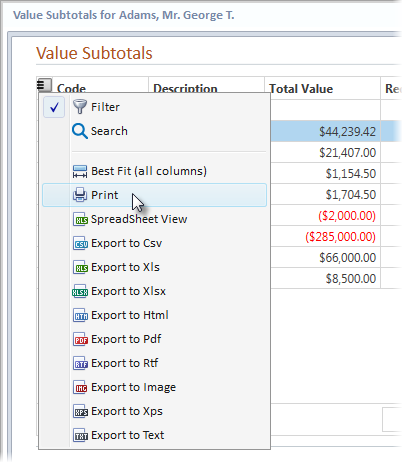
The current grid view in the Value Subtotals window can be printed by
clicking the Hamburger icon  in the upper left corner of the grid and selecting the Print option from
the menu. Other options include exporting the current grid view in the
desired format.
From the Print Preview window, click on the appropriate ribbon buttons to search, print, send or export the report.
The columns can be repositioned, however they are default and cannot be removed from the grid.
Click on the OK button at the bottom of the Value Subtotals window to close it.