To access the Value tab, navigate to a Case Folder and select the Value tab from the list of tabs on the left. If no value items have been entered for this case, a new Value item is opened.
You will need permissions to the Value Tab in order to input Value information.
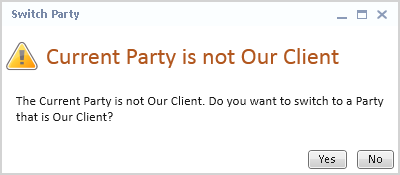
The Value tab opens to a list of Value items that have been entered for the selected party in the current case. When selecting the Value tab if the selected party is not marked Our Client and does not have any Value items associated with it, the Switch Party warning message will display.
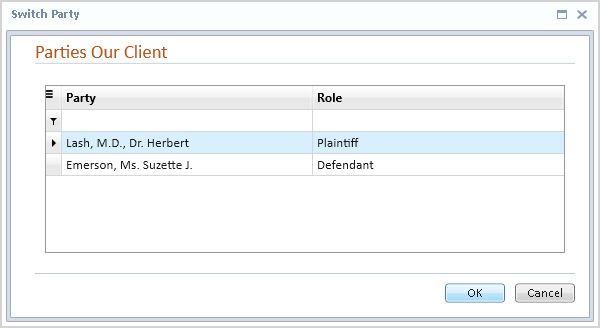
Once a Value item has been saved for the party who is not Our Client, the Switch Party message will no longer display.
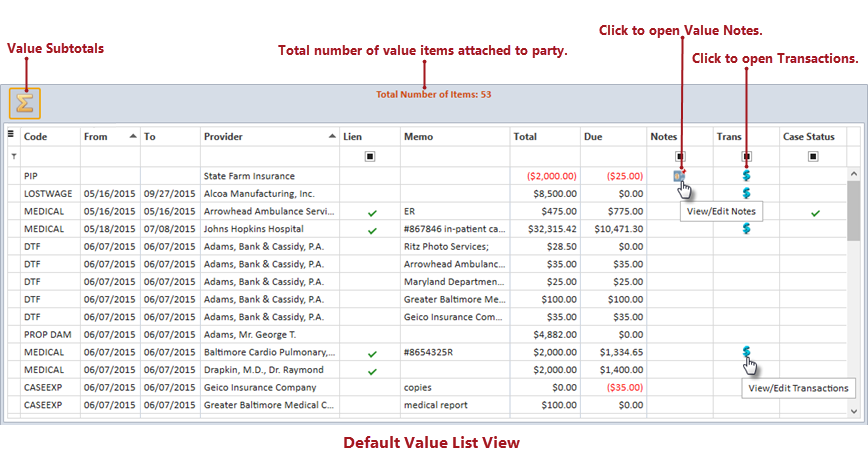
The Header Band on the Value List View displays the Value Subtotals button and the total number of value items attached to the currently selected party.
The list of value items will display in a grid
containing the default columns: Code, Service From, Service To, Provider,
Lien, Memo, Total, Due, Notes, and Transactions. If the Case Status tab
is active and defined for the case type, the Case Status column will be
displayed. Additional columns can be inserted into the grid using the
Column
Chooser option from the menu when right-clicking a column heading.
The list view is sorted by From Date, then Provider, by default. Change
the sort
order by clicking the column header of the column by which you want to
sort. Right-clicking on a column header will pop up a menu with additional
options for organizing or finding information in the list view, such as
grouping,
filtering,
searching,
and conditional
formatting. Click on the grid's hamburger icon  in the upper left corner to save or reset the layout after making changes.
Each value item will be displayed as a row in the grid. When a Value
item is marked as a credit or if there is a negative debit, the currency
columns such as Due and Total will display in red and will be formatted
according to the user's Windows regional settings for negative currency.
An icon  will display in the Lien column
when the Lien check box has been selected for a value item. A Notes icon
 will display in the Notes column when a Value Note
is attached to the value item. Clicking the Notes icon will open the Value
Note(s) for the selected Value item. If a Value item contains two or more
transactions, an icon
 will
display in the Trans column. Clicking on the Transactions icon
will open the Transaction
Details window allowing transactions to be deleted, modified or added
directly from the list view. If the Case Status check box has been selected
in a Value item, an icon will display in the Case
Status column.
Double-clicking a row in the Value tab list view will open the detail view of a Value item.