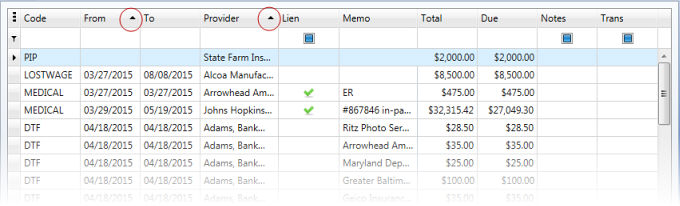
The data displayed in a grid is sorted by default by columns that make sense within the data being presented. For example, on the Value tab of a case, the data is sorted by the From Date, then by the Provider. Sometimes changing the sort or adding a grouping can be useful in viewing the information for multiple purposes.
The current sort order of a grid can be determined by the arrows in the column headings. Clicking the sort arrow will toggle between ascending and descending order in that column.
To sort rows by a column's value and replace existing sort conditions that are currently applied, click the column's header until an Up or Down Arrow icon is displayed within the header. The Up and Down Arrows indicate ascending and descending sort orders respectively.
To sort rows by a column's value while preserving existing sort conditions, do one of the following:
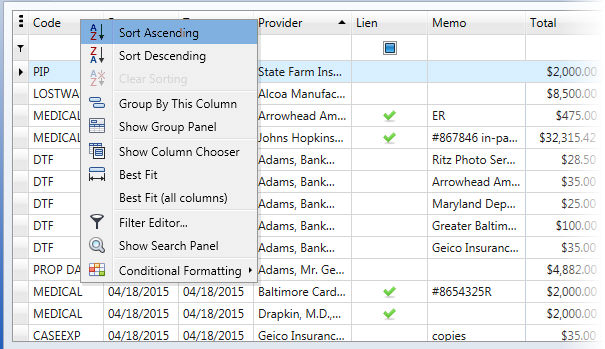
To remove sorting by a column, do either of the following:
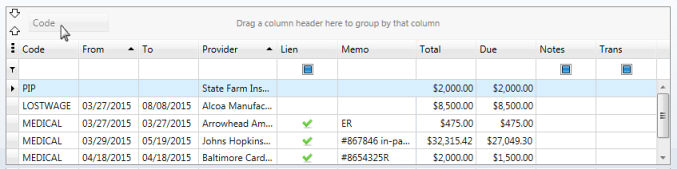
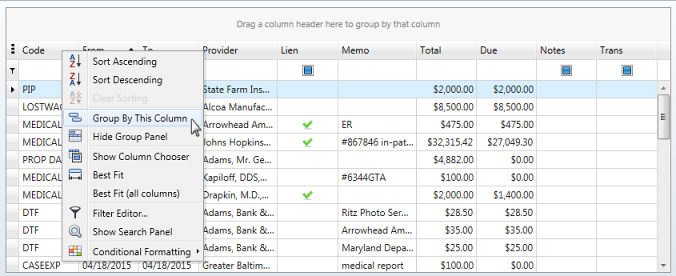
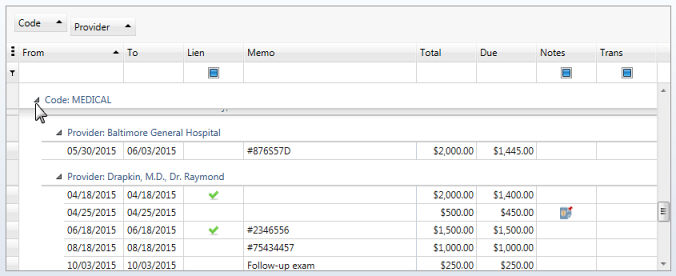
Sometimes it can be valuable to view data in groupings. Grouping can be accomplished several different ways.
To group by a specific column, do one of the following:
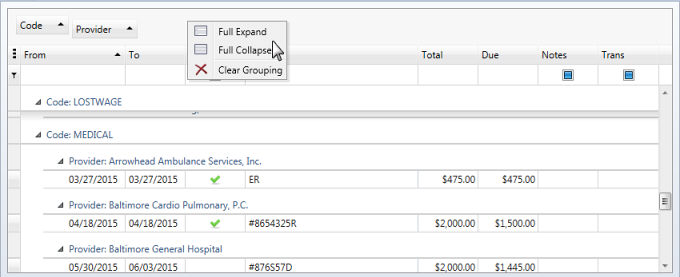
To expand or collapse the data rows in a group:
To ungroup data by a grouping column, you can do either of the following
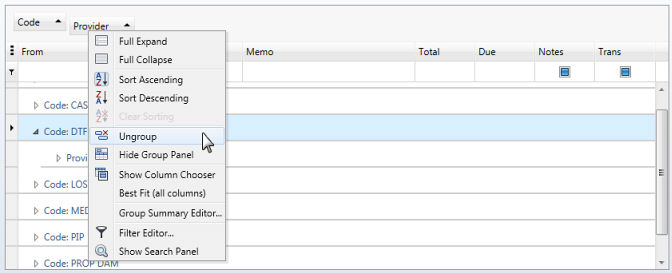
To remove grouping by all columns, right-click the Group Panel and select Clear Grouping from the popup menu.