Time Tracking on the Value Tab
The Value tab can be used in conjunction with the Needles Time Tracking feature. Time
entries are saved as Value items in a case rather than on the Time tab.
By using the Value tab, time items are available to include in customized
settlement memos, merge documents, user defined reports, and existing
Value reports.
Activating Time Tracking
to Value
To enable Time Tracking on the Value tab:
- Create a Value Code in the Value
Codes Mini Directory to be used for time entries.
- Click on the File menu, and select Firm Preferences.
- Select the Time Tracking tab.
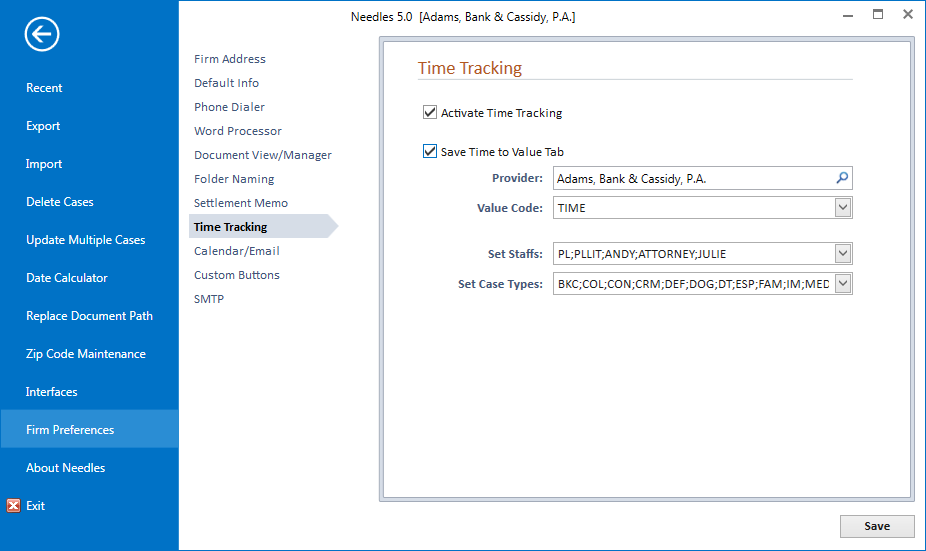
- Select the Activate
Time Tracking check box.
- Select the Save Time
to Value Tab check box. Additional fields will display.
- Provider is a
searchable
names field allowing for a name to be searched in Needles to select
an existing provider or add a new name to your database. The Provider
in this instance should be the firm.
- Enter a fragment
of the firm's name. The Name
Results List will display a list of matching results.
- Double-click the desired name
from the search results or add a new name by clicking on the Add
Provider button.
- Select the Value Code
created for Time entries from the dropdown (step #1, above).
- Select all Staff who will be tracking time from the Set Staff dropdown.
- In the Set Case Types field, select all Case Types from
the dropdown where time tracking should be available.
- Click the Save
button to keep changes.
- Tasks must be entered in the Tasks
Mini Directory prior to completing your first time entry.
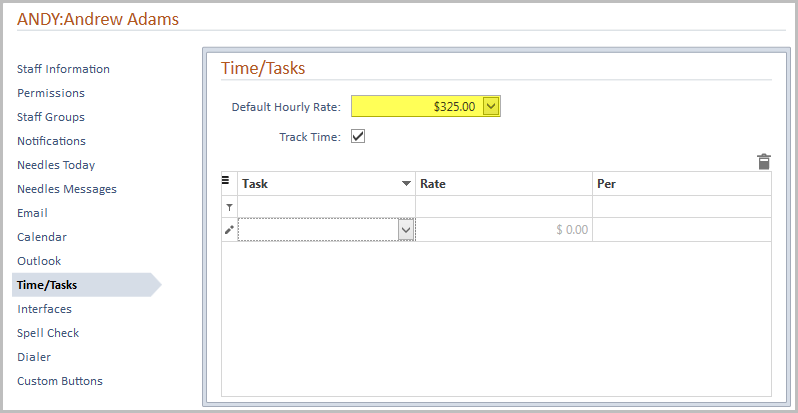
- Default Hourly Rates should be entered in the Time/Tasks
Staff Preferences
for each Staff person tracking time.
Creating Time Value Items
Once Time Tracking has been activated, a timer will be displayed in
the Header Band of the Case Folder in an opened case. Time cards will
automatically pop up when attempting to close a Case Folder or exit Needles
when cases are still open. Double-clicking on the timer in the Header
Band will also cause a time card to display. See the Time
Tracking topic for additional information on using the timer and entering
time cards in Needles.
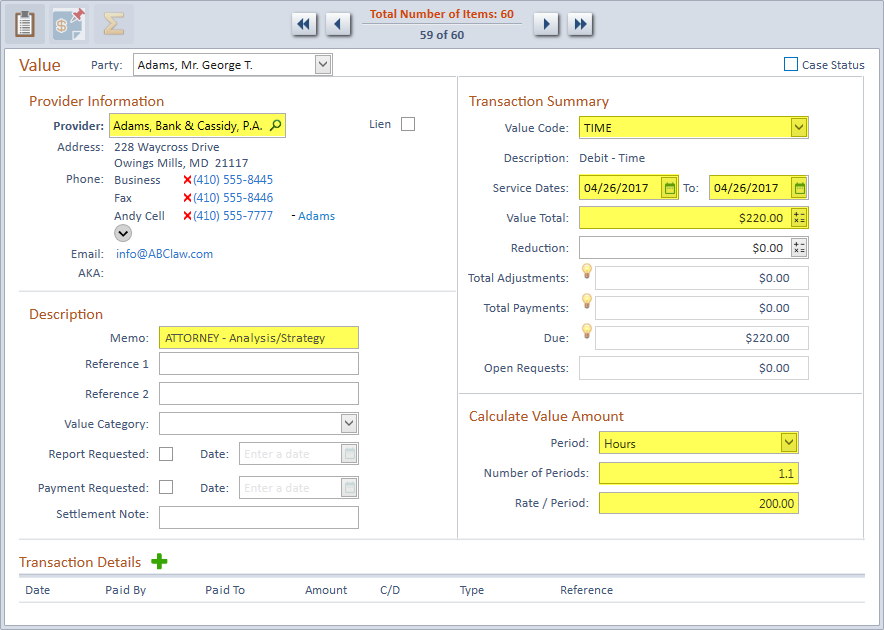
When the time card is saved, a Value item will automatically be created
and can be viewed on the Value
tab. The Value item will be populated with the following information:
- The Provider and Value Code will be populated
from the Time Tracking tab in Firm Preferences.
- The Staff Code and Task Description will display
in the Memo field separated by a hyphen. This field cannot be modified
when the designated Time value code is set as the Value Code for the
value item.
- The Rate field from the Time Entry window (typically
the Default Rate for the Staff) will populate the Rate/Period field.
- The Rate field from the time card will populate
the Rate/Period field, and the Billable Time field will convert to
the Number of Periods. The Value Total will be calculated based on
the content in the Rate/Period, Period, and Number of Periods fields.
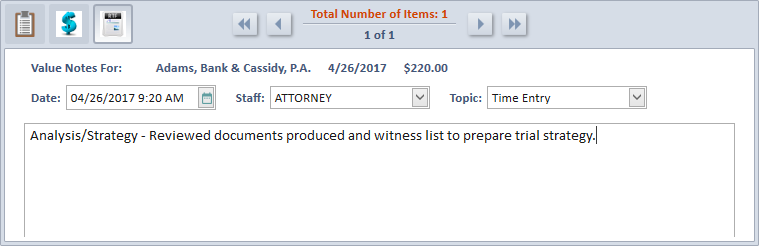
- A Value Note is created for the value item
using the Value Note Topic of "Time Entry" from the Value
Notes Mini Directory.
- The Note Staff, Date, Start Time, and Note
fields are populated directly from the Time Entry form.
A time value item can be manually created by filling in the fields as
noted above. Time value entries can be printed just like printing
any value items. When the Time tracking to Value option has been enabled,
standard time reports from value will be available from both the Reports
for Tab ribbon button and the Report Library, which includes Time
Reports
and Value Reports.