Creating a Value Item from a User Defined Field
Value items can also be created from a user defined field of the type
"Value Code" from another tab. For example, a user defined Records/Request
tab may have been created to track the record and bill requests to medical
providers in a personal injury case type. In the example below, a user
defined Value Code field was created to track the expenses associated
with requesting medical reports and records. Another Value Code field
was created to enter a medical bill, if one was also requested and received.
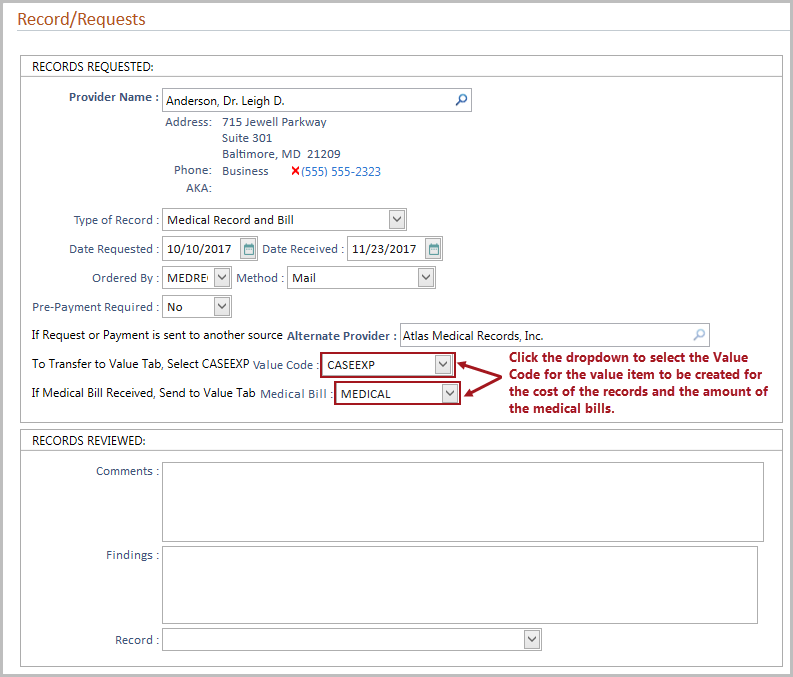
To create a Value item from a user defined tab entry:
- Create
a user defined Value Code field on the specific user defined Case
Folder tab (as demonstrated above). Save
the screen.
- Open a case containing the user defined screen where
the user defined Value Code field has been defined.
- Select the desired Value Code from the dropdown.
- If no providers exist on the current entry,
a search
window will display prompting you to select a Provider
OR add the new provider to the system by clicking the Add
Provider
button on the search results window.
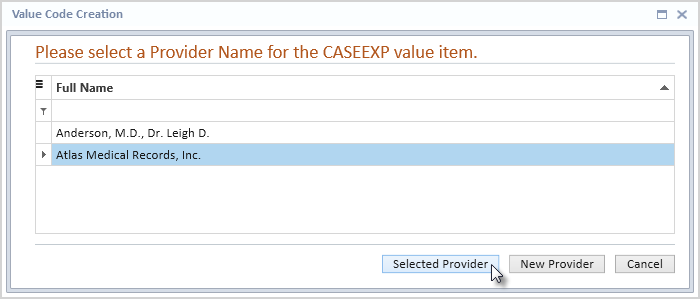
- If one or more providers are entered on
the current screen, a Value Code Creation window will display
allowing you to select from provider(s) currently entered on the
screen. Select the desired Provider
and then click the Selected Provider button OR click the New
Provider button to begin the process for entering a new Provider
into the system.
- A partially completed Value
item will display when the Selected Provider button is clicked
or a new provider has been chosen. The Provider name, Value Code will
be populated with the selections chosen from the user defined screen
and the current date will be entered in the Service Dates.
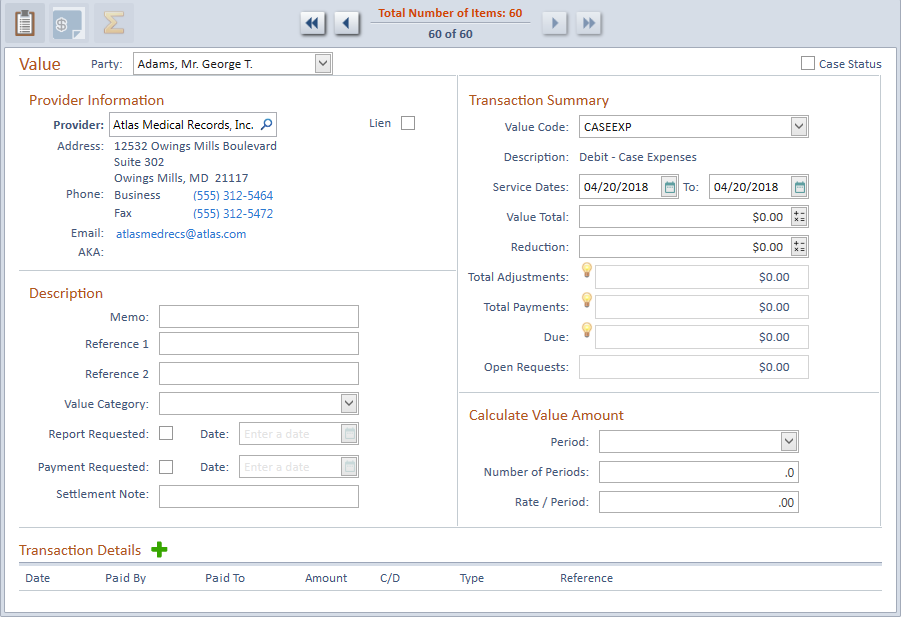
- Enter the amount in the Value
Total field, as well as any other information that may be pertinent.
- Click the Save
button to keep the new Value item. If the Accounting
System Interface has been set up for Check Export, a check request can
be made from the new Value item.
If the Value tab has been added to the Case
Status User Defined Setup Screen, you may select the Case
Status check box on a Value item detail view to display this information
on the Status tab of the current case.