 at the end of the text field or
hit ENTER to run the search.
Searching for a name, whether a party or a provider, can be accomplished
by selecting any of the names criteria available in the Search By dropdown.
The Search By dropdown contains fields from the Party, Provider and Case
tabs that can be used as search criteria. Once a criteria option is selected,
text can be entered into the search text box in which to search. Click
the Search icon at the end of the text field or
hit ENTER to run the search.
If you know information about a party or provider, you can retrieve their Needles entry using the following criteria:
When a different criteria option is selected, any text in the search field will be cleared. Below is a description of how each different criterion can be used to search for a name in Needles.
To retrieve a party or provider using their name:
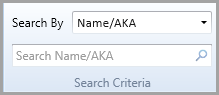
at the end of
the text field or hit ENTER
to run the search. Any matching names will display in the Name Results List. To reduce the risk of creating duplicates due to spelling errors, try typing only the first three letters of a person’s last name or the first three letters of a company’s name. This acts as a check for conflicts of interest, since any party or provider of services that exists in Needles will be displayed. A name may still be retrieved using a person’s complete last name or complete first and last name, as well as a complete company name.
You may search for all names that start with a fragment of the name or AKA using a percent sign as a wildcard. For example, to find all names in Needles that start with “A”, you would enter “A%” in the search text field. All names may be retrieved using only“%”.
A name may be involved in several cases. For example, the same client may have retained your firm to handle a divorce, then an automobile accident and a product liability case against the car manufacturer. A party can also be entered as a provider name in another case (for example, as a referral source). In both instances, you need to select the appropriate case from the Search Results.
To a retrieve a name using a party’s or provider’s social security number:
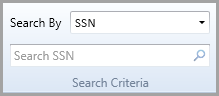
at the end of
the text field or hit ENTER
to run the search. Any matching names will display in the Name Results List. A name can be retrieved using the first three or last four digits of a Social Security Number. The search text field already contains the appropriate formatting for the Social Security Number, so you do not need to enter dashes for your search.

To a retrieve a name using a party’s or provider’s email address:
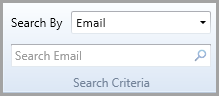
at the end of
the text field or hit ENTER
to run the search. Any matching names will display in the Name Results List. You may search for all names that start with a fragment of an email address using a percent sign. For example, to find all names in Needles with email addresses that start with “c”, you would enter “c%” in the search text field. All names with or without email addresses may be retrieved using just “%”.
The Name ID is a unique number that is automatically assigned to a name by Needles when it is entered into the system. The number is displayed on the Party or Provider tabs, to the right of the tab headers.
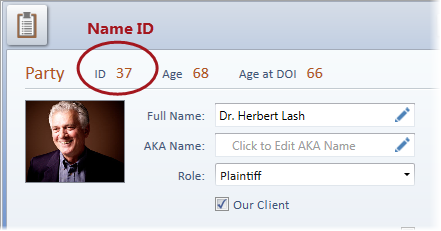
To retrieve a name using a party’s or provider’s Name ID:
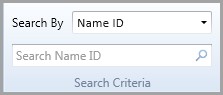
at the end of
the text field or hit ENTER
to run the search. Any matching names will display in the Name Results List.
To retrieve a name using a party’s or provider’s phone number:
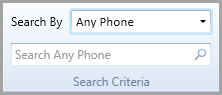
at the end of
the text field or hit ENTER
to run the search. Any matching names will display in the Name Results List.
Note: The search text field already contains the appropriate formatting for a phone number, so you do not need to enter the parentheses and dashes for your search.

To retrieve a name using a party’s or provider’s city in their default address:
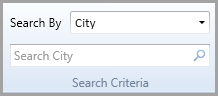
at the end of
the text field or hit ENTER
to run the search. Any matching names will display in the Name Results List.
You may search for all names that start with a fragment of a city using a percent sign (%) as a wildcard. For example, to find all names in Needles with cities that start with “B”, you would enter “B%” in the search text field. All names with or without cities may be retrieved using just “%”.
To retrieve a name using a party’s or provider’s zip code in their address:
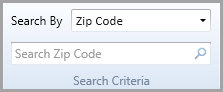
at the end of
the text field or hit ENTER
to run the search. Any matching names will display in the Name Results List.
To search for a name with a zip code that contains a particular number, type percent symbols (%) surrounding the number(s). For example, if you are searching for a zip code that contains the numbers “71”, you would type “%71%” into the search text field and all names that contain zip codes with the string of “71” will be displayed. All names with or without zip codes may be retrieved using just “%”.
To retrieve a name using a party’s or provider’s date of birth:
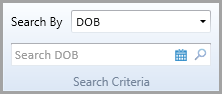
at the end of
the text field or hit ENTER
to run the search. Any matching names will display in the Name Results List.
When a number is entered, the default date format will display in the search text field, so you do not need to enter a slash in your search.

To retrieve a name using a party’s or provider’s Federal ID:
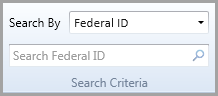
at the end of
the text field or hit ENTER
to run the search. Any matching names will display in the Name Results List.
Only a fragment of the beginning of the Federal ID number(s) is needed to retrieve name results. When the cursor is in the search text field, the default Federal ID format will display in the search text field, so you do not need to enter a dash in your search.
