Advanced Document Search
Using the advanced Document Search option allows for more advanced searches
to be performed to find documents in your system using multiple search
criteria. All of the data from the document profile screens of attached
documents on the Documents Tab can be searched using the Advanced Document
Search. Search results for documents are displayed in the Search
Results Tab Window. The results window is tailored to display as much
information based on the type of search conducted.
The Document Search
button opens the Document Profile Criteria window, which displays eight
different tabs to further define document search criteria.
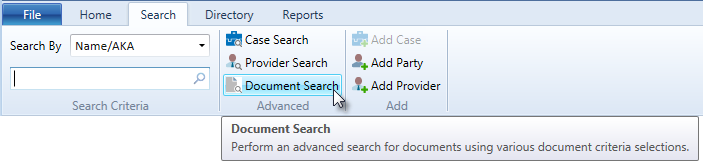
To perform an advanced document search,
- Select the Search
tab ribbon.
- Click the Document Search button in the Advanced
ribbon group. The Document Profile Criteria window will display.
- Select the desired criteria
from any of the possible eight criteria tabs. Each criteria tab is
described in the following sections.
- Click the OK
button to initiate the advanced document search. Any matching results
will display in the Documents
Search Results Tab Window.
- Click the Cancel
button to abort the search and close the Document Search Criteria
window.
The Document Search Criteria window contains the following eight criteria
tabs to further define a search by document information:
Document Profile
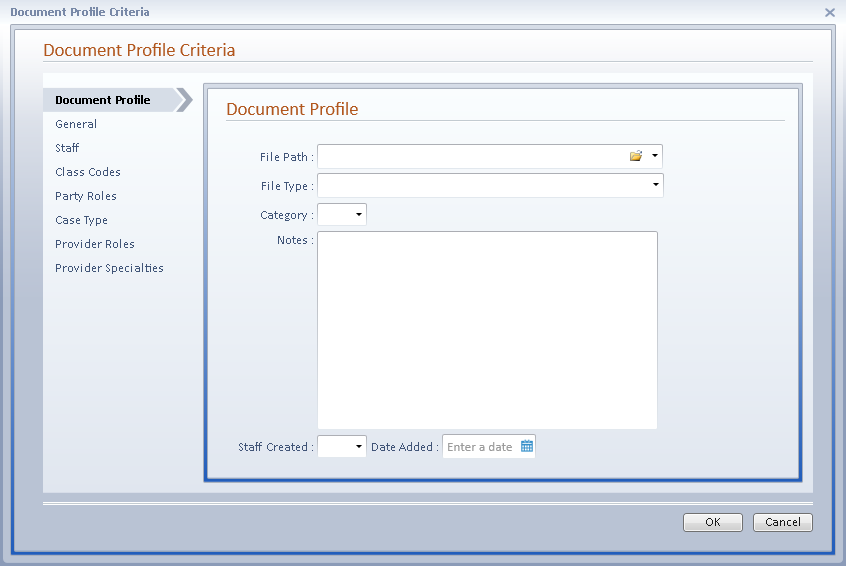
The Document Profile Criteria window always opens on the Document Profile
tab. A search may be performed for all documents containing specific data
from fields configured on the Document
Layout screen. The following is an example of the fields that may
display on the Document Profile tab if they exist on the Document Layout
screen. Select or enter data from one or more criteria areas to narrow
your document search.
General
To search for documents using the General tab information, individual
criteria or a combination from the Document Selection, Case Status or
Date Range criteria areas can be selected to further refine the search.
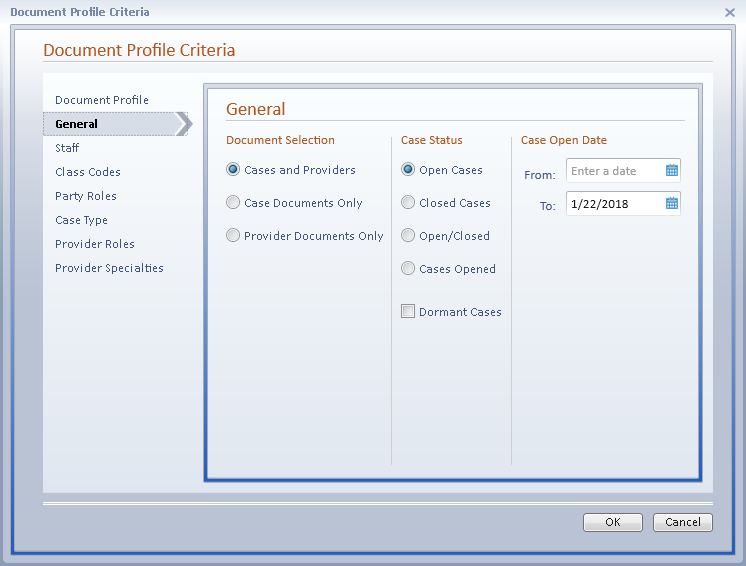
- Document Selection - This section allows the
search to be limited to searching Cases or Providers or both areas
when searching for documents. Select
from the options Cases and
Provider, Case Documents
Only or Provider Documents
Only. Cases and Providers is
the default setting.
When selecting the Case Documents
Only option, only case-related criteria tabs will display (Document Profile,
General, Staff, Class Codes, Party Roles, Case Types). When selecting
the Provider Documents Only option, only provider-related criteria tabs
will display (Document Profile, General, Provider Roles, Provider Specialties).
Case
Status - The Case Status option allows the case status to be
defined in the search. Select from the options Open
Cases, Closed Cases,
Open/Closed or Cases
Opened. Click on the Dormant
Cases check box to include them in the search results as well.
Open Cases is the default
setting.
- Date Range
- Depending upon the Case Status selection, the accompanying Date
Range criteria will vary accordingly. For example, when selecting
the Status of Open Cases,
the Date Range area will be entitled "Case
Open Date". Enter a date range in MMDDYYYY or select the
date from the calendar
icon if you wish to further define the search.
Staff
To
search for documents using the Staff tab information, you can select criteria
to find cases for one staff, multiple staff or all staff assigned to cases.
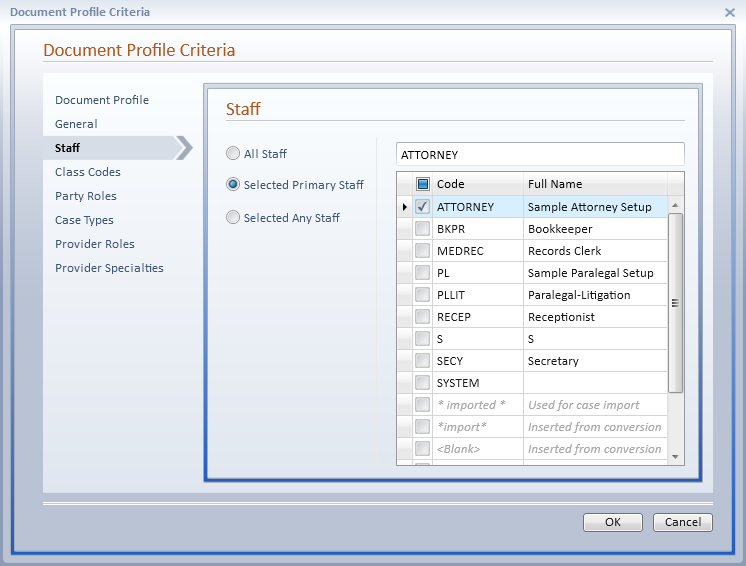
- All Staff
- Select the All Staff to include all cases for all staff. This is
the default setting.
- Selected Primary
Staff - Select one or more Staff
Codes to include all cases where the selected staff codes are
assigned to the Primary Staff position. Select the check box next
to each desired Staff Code.
- Selected Any
Staff - Select one or more staff codes to include all cases
where the selected staff codes are assigned to any staff position
in a case. Select the check box next to each desired staff code.
Class Codes
To search for documents using the Class Code tab information, you can
select criteria to find documents in cases for all Class Codes or for
one or more selected Class Codes.
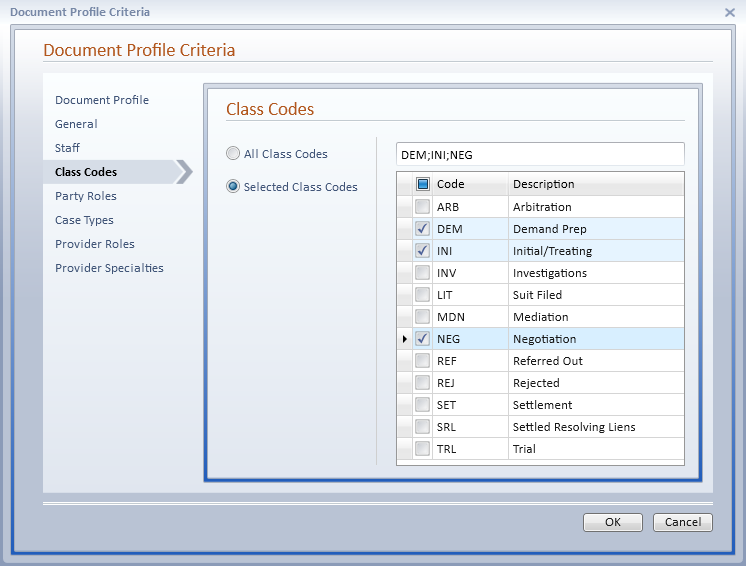
- All Class
Codes - Select the All Class Codes option to include all cases
for all Class Codes. This is the default setting.
- Selected Class
Codes - Select one or more Class Codes to include all cases
where the selected class codes are listed. Select the check box for
each desired class code.
Party Roles
To search for cases using the Party Roles tab information, you can select
criteria for all Party Roles or for one or more selected Party Roles.
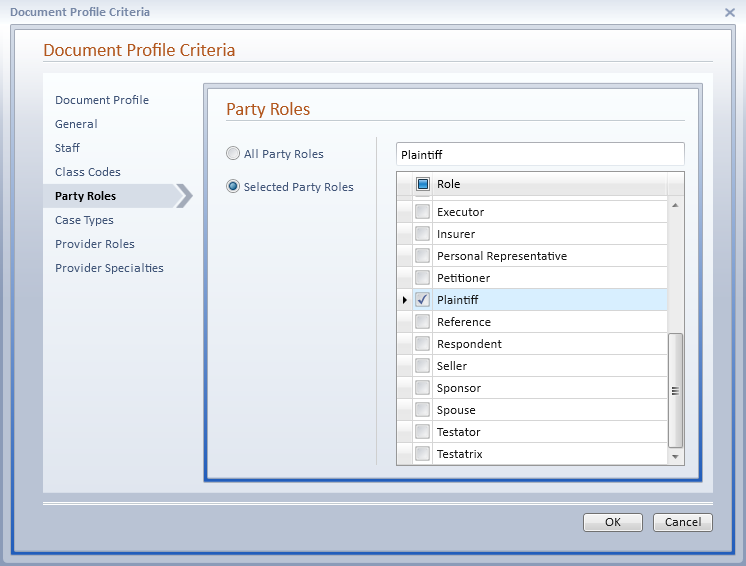
- All Party
Roles - Select the All Party Roles option to include all cases
for all Party Roles. This is the default setting.
- Selected Party
Roles - Select one or more Party Roles to include all cases
where the selected Party Roles are assigned to a party in the case.
Case Types
To search for cases using the Case Types tab information, you can select
criteria to find cases for all Case Types or for one or multiple selected
Case Types.
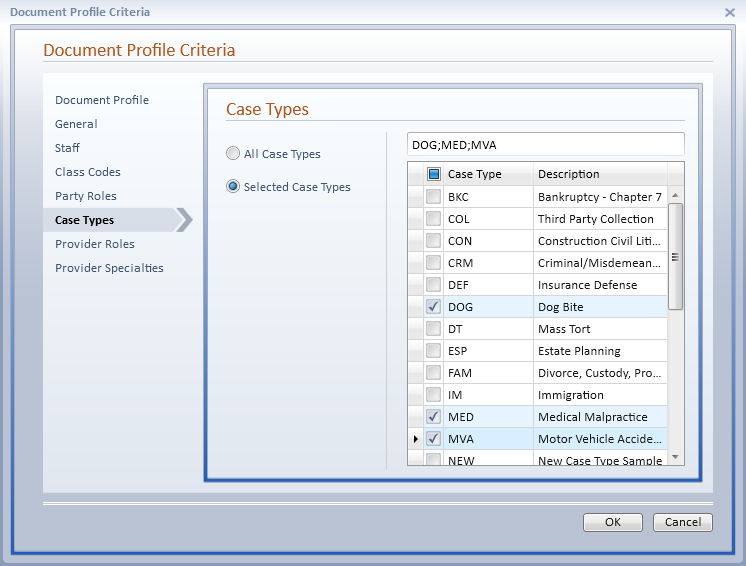
- All Case Types
- Select the All Case Types option to include all cases for all Case
Types. This is the default setting.
- Selected Case
Types - Select one or more Case Types to include all cases
of the selected Case types.
Provider Roles
To search for providers using the Provider Roles tab information, you
can select criteria for all Provider Roles or for one or more selected
Provider Roles.
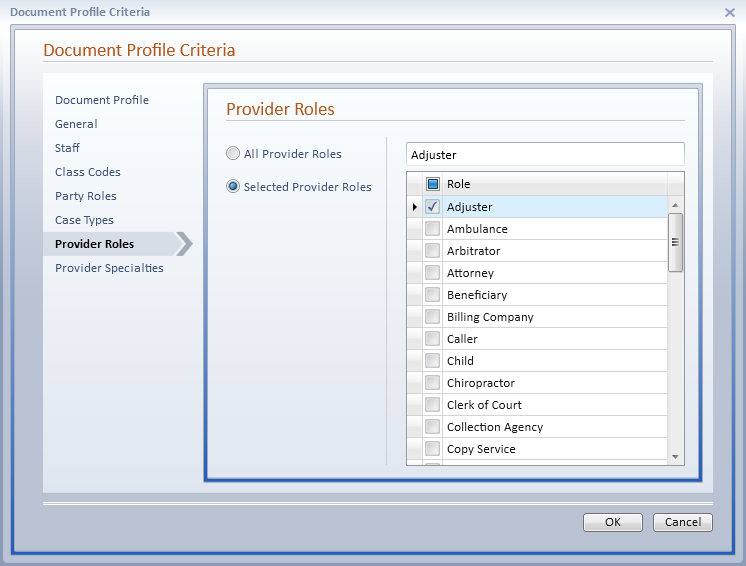
- All Provider
Roles - Select the All Provider Roles option to include all
names for all Provider Roles. This is the default setting.
- Selected Provider
Roles - Select one or more Provider Roles to include all names
where the selected Provider Roles are assigned.
Provider Specialties
To search for providers using the Provider Specialties tab information,
you can select criteria for all Provider Specialties or for one or more
selected Provider Specialties.
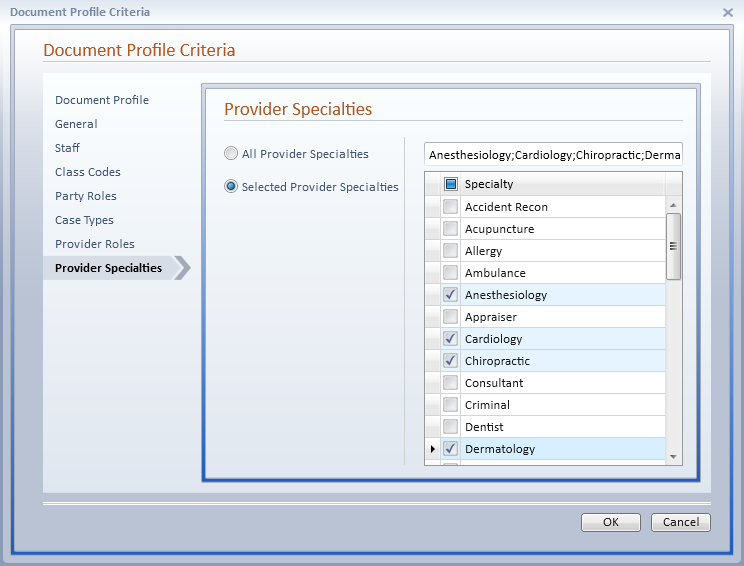
- All Provider
Specialties - Select the All Provider Specialties option to
include all names for all Provider Specialties. This is the default
setting.
- Selected Provider
Specialties - Select one or more Provider Specialties to include
all names where the selected Provider Specialties are assigned.