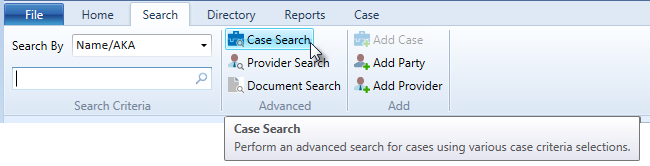
Using the advanced Case Search option allows for more advanced searches to be performed to find cases using multiple search criteria. For example, there may be times where you will want to search for cases opened within a certain date range and where the primary staff assignment is a particular attorney or all cases assigned certain class codes. Search results for cases are displayed in the Search Results Tab Window. The results window is tailored to display as much information based on the type of search conducted.
The Case Search button opens the Case Search Criteria window, which displays six different tabs to further define case search criteria.
To perform an advanced case search,
The Case Search Criteria window contains the following six criteria tabs to further define a search by case information:
The Case Search Criteria window always opens on the General tab. To search for cases using the General tab information, individual criteria or a combination from the Our Client, Case Status or Date Range criteria areas can be selected to further refine the search.
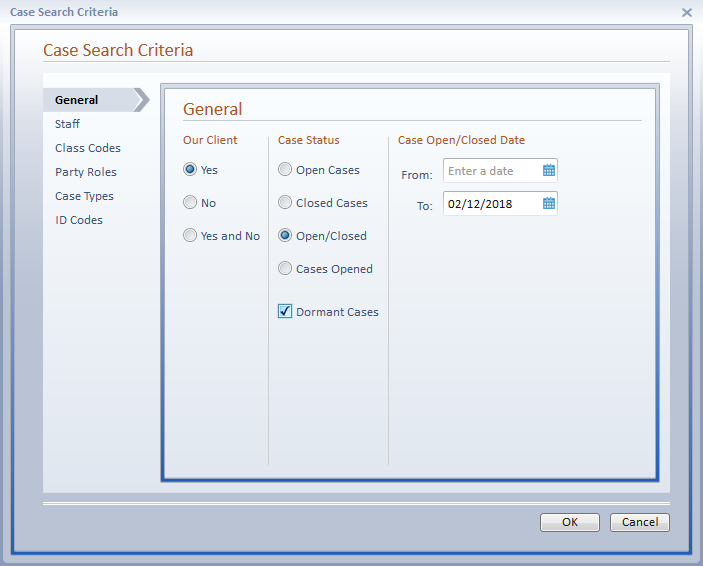
Our Client - This option allows the search to be limited to cases where a party or parties have the Our Client check box selected or unselected. Select Yes, No, or Yes and No to get all parties. Yes is the default setting.
Case Status - The Case Status option allows the case status to be defined in the search. Select from the options Open Cases, Closed Cases, Open/Closed or Cases Opened. Click on the Dormant Cases check box to include them in the search results as well. Open Cases is the default setting.
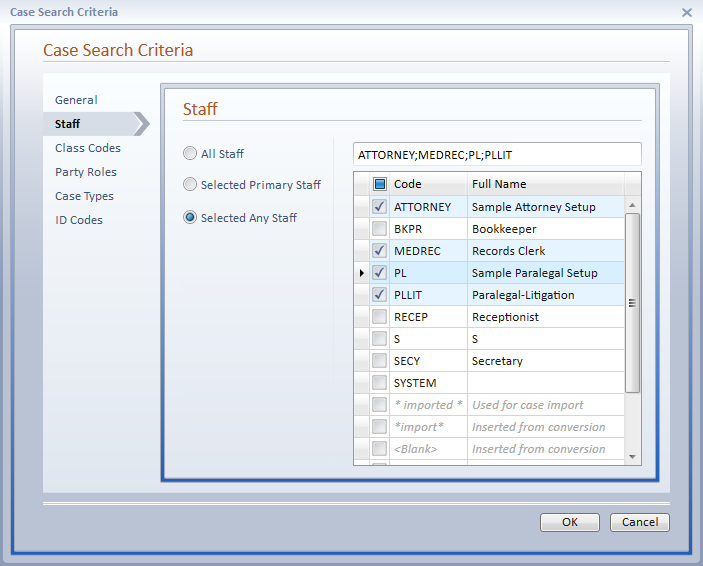
To search for cases using the Staff tab information, you can select criteria to find cases for one staff, multiple staff or all staff assigned to cases.
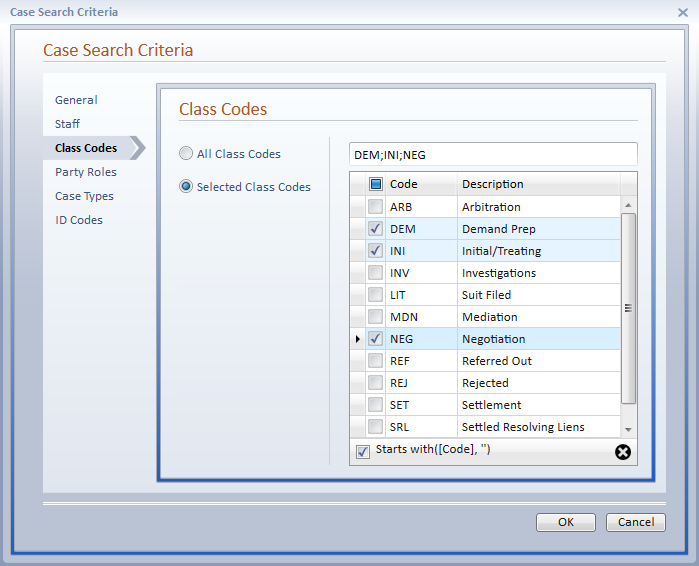
To search for cases using the Class Code tab information, you can select criteria to find cases for all Class Codes or for one or more selected Class Codes.
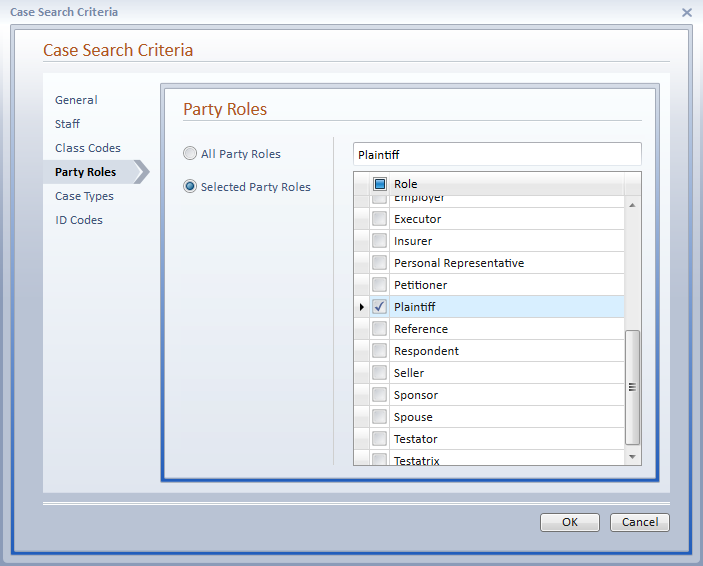
To search for cases using the Party Roles tab information, you can select criteria for all Party Roles or for one or more selected Party Roles.
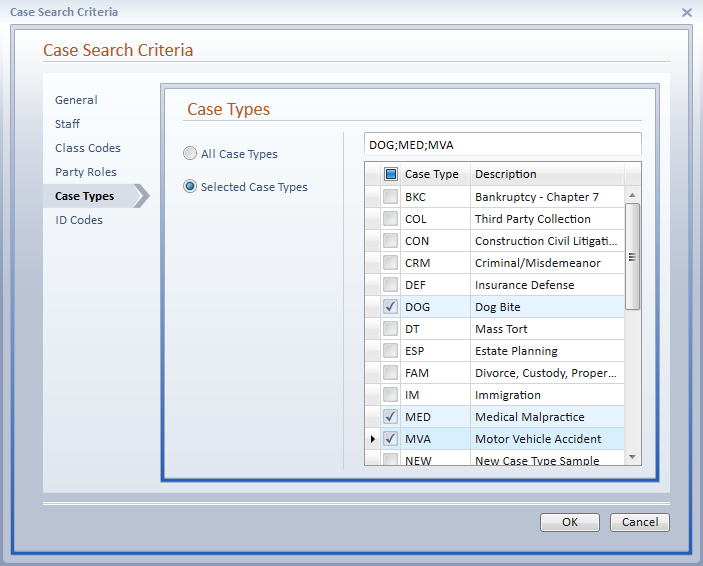
To search for cases using the Case Types tab information, you can select criteria to find cases for all Case Types or for one or multiple selected Case Types.
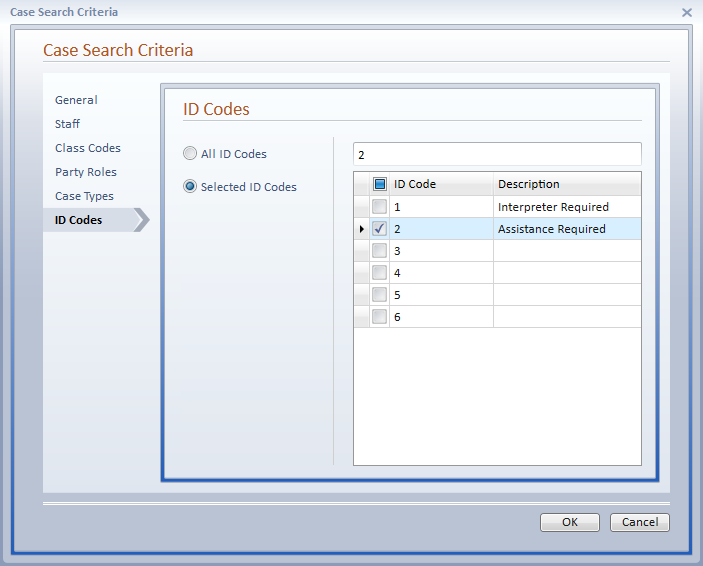
To search for cases using the ID Codes tab information, you can select criteria to find cases for all ID Codes or for one or more selected ID Codes.