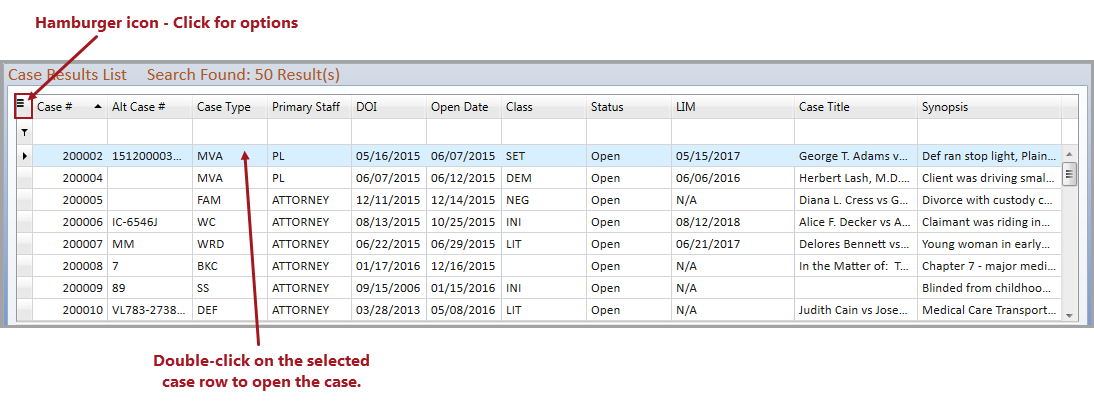
The Case Results List is generated when a search is conducted using case criteria. The results view contains the following sections which are further described below.
The default columns in the Case Results grid pertain to the case(s) matching the case search results. Additional columns such as Alt Case #2 and Required Staff Roles may be added to the grid using Column Chooser. When a selected case is double-clicked, the Case Tab in the Case Folder of the selected case will display. The hamburger icon (top left of the grid) allows you to access Filter and Search options within the grid, as well as saving and resetting the grid layout after changes have been made.
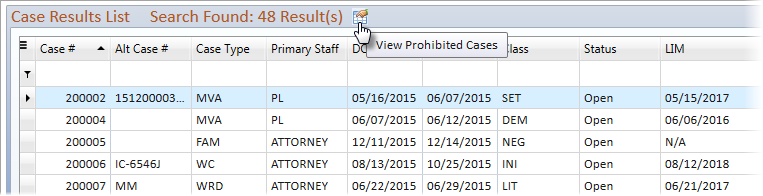
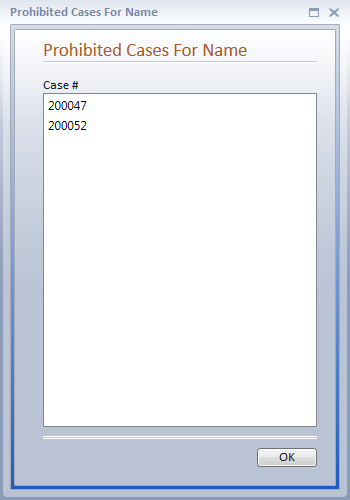
If a Staff's permissions have been set on the Case
Filter tab to exclude any cases, a prohibited cases icon  will display above the Cases grid when the selected name includes cases
where the user's access is prohibited from the user.
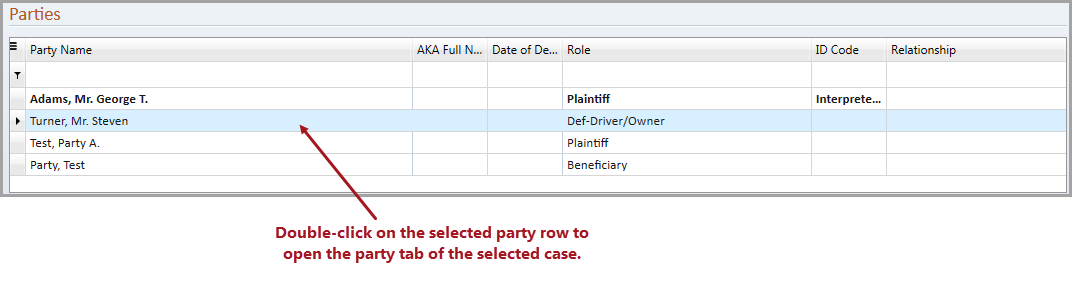
The Parties section grid contains default columns that pertain to all the parties in a selected case. Additional columns such as AKA Full Name, Date of Birth, Date of Majority, DOB, First Email, First Phone, ID Code, and Responsible for another party may be added to the grid using Column Chooser. The hamburger icon (top left of the grid) allows you to access Filter and Search options within the grid, as well as saving and resetting the grid layout after changes have been made. When a selected party is double-clicked, the Party Tab in the Case Folder for the selected name will display.