Accessing the Provider Associations Directory
To access the Provider Associations Directory, click the Provider Associations button in the Directory
Editors group on the Directory ribbon.
You will need permission to the Provider
Associations Directory in order to access it.
The Provider Associations Directory window displays two panes:
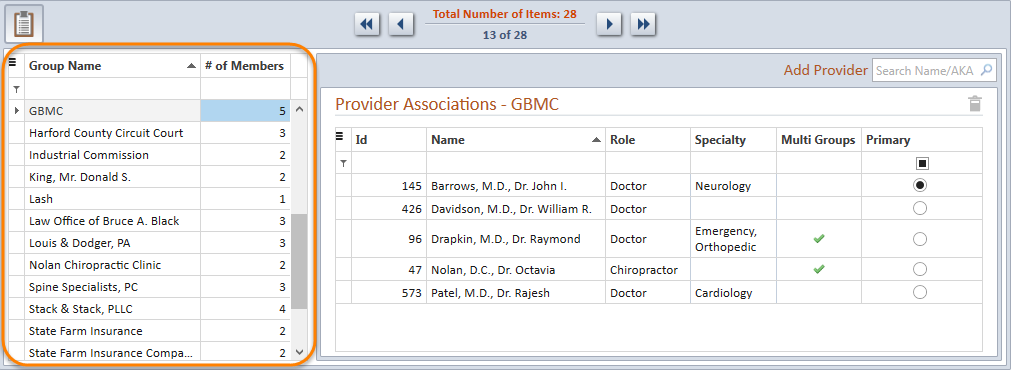
Groups Pane
The Groups Pane is located on the left side of the Provider Associations
Directory window and displays a grid
listing provider association groups and the number of provider members
in each group. Select a Group Name from the grid to view the list of members
in the Group Members Pane to the right. The Groups grid can be filtered,
searched,
printed
or exported by clicking the hamburger  icon in the upper left corner and selecting the appropriate option from
the menu. Once a group is selected in the Groups Pane, the header bar
displays with available options and the providers in the group are displayed
in the Group Members Pane on the right.
Group Members Pane
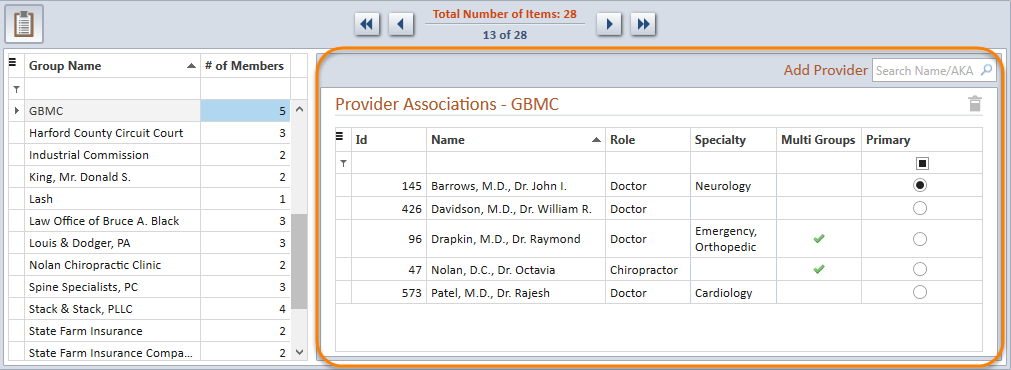
The right-hand pane shows a grid
listing provider members in a selected Provider Associations Group. The
name of the currently selected Provider Associations Group will be displayed
above the grid. Columns for identifying provider details include Name
Id, Name, Role, Specialty, Case Type, Multi Groups, and Primary. The Multi
Groups column displays an indicator icon  if a provider
is a member of other Provider Association Groups. Click on the grid's
hamburger menu
 to filter
or search
the list of providers in a Provider Associations Group. Columns can be
rearranged and the layout can be saved or reset. The current grid view
can be printed
or exported. Double-clicking on a provider row in the Group Members list
will open the selected provider folder.
Providers can be added
to a group, as well as removed
from a group. Provider Associations Groups can also be created
and deleted from the Provider
Associations Directory.