Adding a Provider Associations Group
New provider association groups can be created using the Provider Associations
Directory as well as directly from the Provider
Associations tab in a Provider Folder. There are two parts to adding
a Provider Associations Group:
Adding a Provider
Associations Group
To add a group in the Provider Associations Directory,
- Click the Provider Associations
button on the Directory ribbon to open the Provider Associations Directory.
- With the Groups Pane displayed (Hide/Show
List button is toggled on), click the Add
button on the Directory ribbon. A blank row will be inserted in the
Groups Pane.
- Enter a Group Name
up to 40 characters. The new row cannot be blank and must be unique.
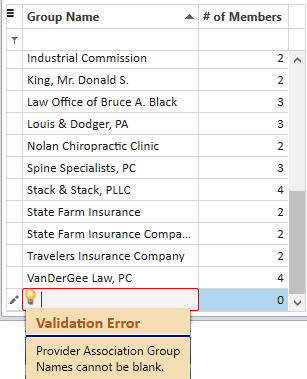
The Group Name field will display a red validation border and icon
until a valid name is entered. Mouse over the validation icon to display
the reason for the error.
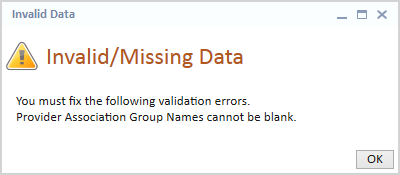
- An Invalid Data warning message will display when leaving
the Group Name field or when attempting to Save either by clicking
the Save button or clicking the Yes button on the Save Changes message
when the new Group Name is invalid. Click OK
on the message to return to the Companion Groups window and enter
a valid Group Name.
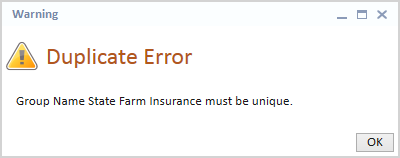
- If a Group Name is already in use, a Duplicate warning
message will display. Click on the OK
button to return to the Provider Association Groups window to enter
a new Group Name.
- Add
a provider to the new group. At least one provider must be associated
with the new group in order to save changes. A warning message will
display when the Save button is clicked but no providers have been
added.
- Click the Save
button to keep the new Provider Associations Group once a provider
has been added as a member. The new group will be resorted alphabetically
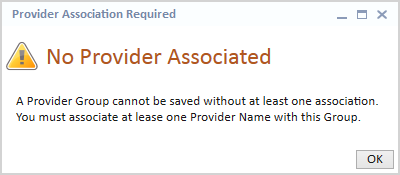
in the grid. If an attempt is made to save the group without a provider
attached, a message displays stating the group cannot be saved until
at least one Provider Name is associated. Click on the OK button to
return to the Provider Associations Directory.
Adding a Provider Member
Using the Group Members Pane on the right side of the Provider Associations
Directory, a provider can be added to the selected Provider Associations
Group. The Add Provider search
field, located above the Group Members Pane, allows you to search for
provider names in Needles.
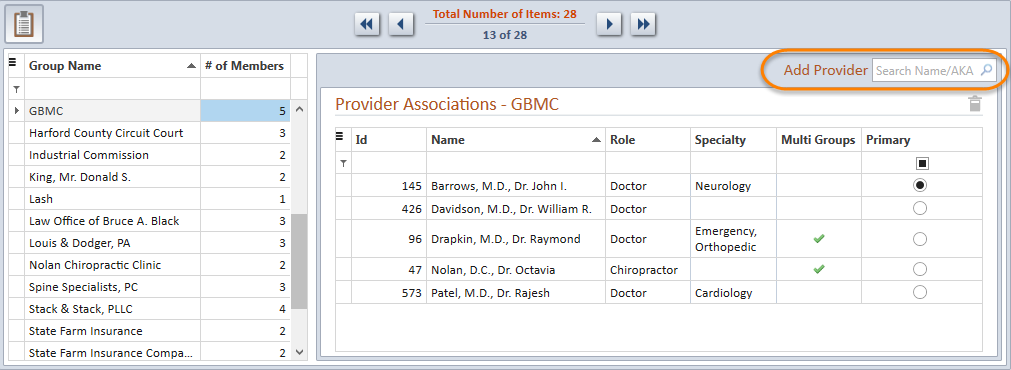
To add a provider as a member to a Provider Associations Group,
- Select the desired Provider
Associations Group from the Groups Pane on the left of the
Provider Associations Directory window. The list of current members
for the selected group will display in the Group Members Pane on the
right side of the tab.
- Enter a fragment of a party name in the Add
Provider search text field above the Group Members grid, and
click the search icon
 or
hit the ENTER key. The Name
Results List will display.
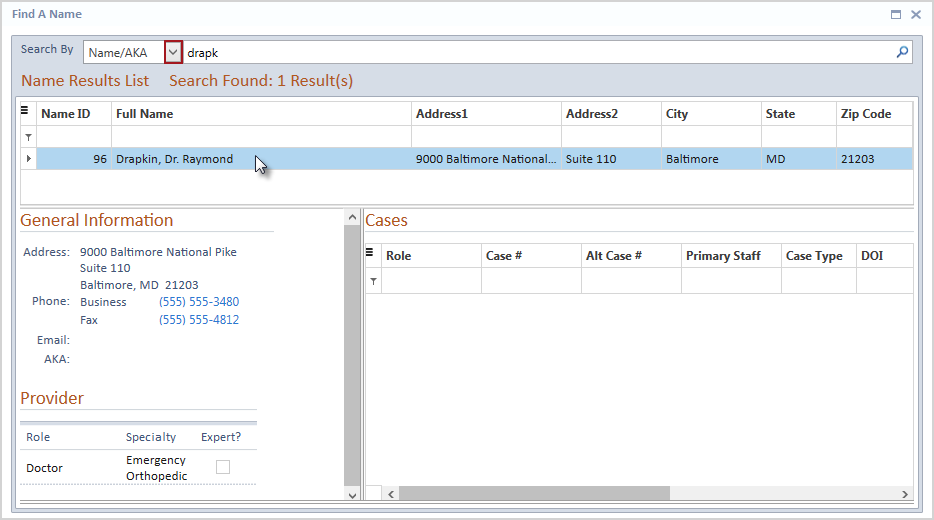
The Find a Name Search
Results window will display the name results. The Search By criteria dropdown
can be changed to use different criteria to locate a provider using other
known information.
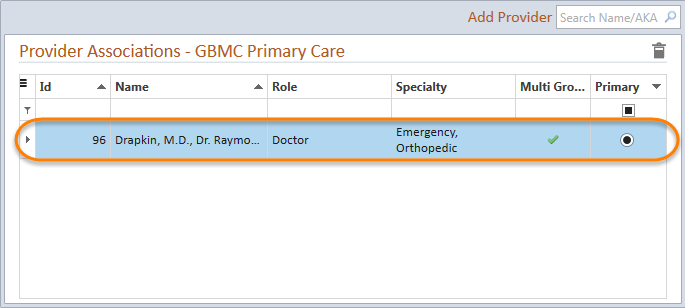
- Double-click the desired provider
to add it to the selected Provider Associations Group. The
selected provider will display in the Group Members grid for the selected
Provider Associations Group.
- Click the Save
button to keep your changes.
Double-clicking a provider member from a selected
Provider Associations Group will open the Provider Folder for the selected
provider.
The added provider will be listed as a member in the Provider Associations
Directory for the selected Provider Associations Group as well as on the
Provider
Associations tab for that provider when changes have been saved.