 .
When unpinned, the Items Pane will be hidden until hovering over the hamburger
icon
 . To pin the Items Pane,
click the unpinned icon
 .
The Items Pane, located on the left-hand side of a User Defined Setup
Screen, displays a list of New Items as well as an alphabetical list of
the Available Items (fields) that can be used on the Design Layout Screen.
The Items Pane is pinned to the left-hand side of the Design Layout Screen
by default but may be unpinned by clicking the pin icon .
When unpinned, the Items Pane will be hidden until hovering over the hamburger
icon . To pin the Items Pane,
click the unpinned icon .
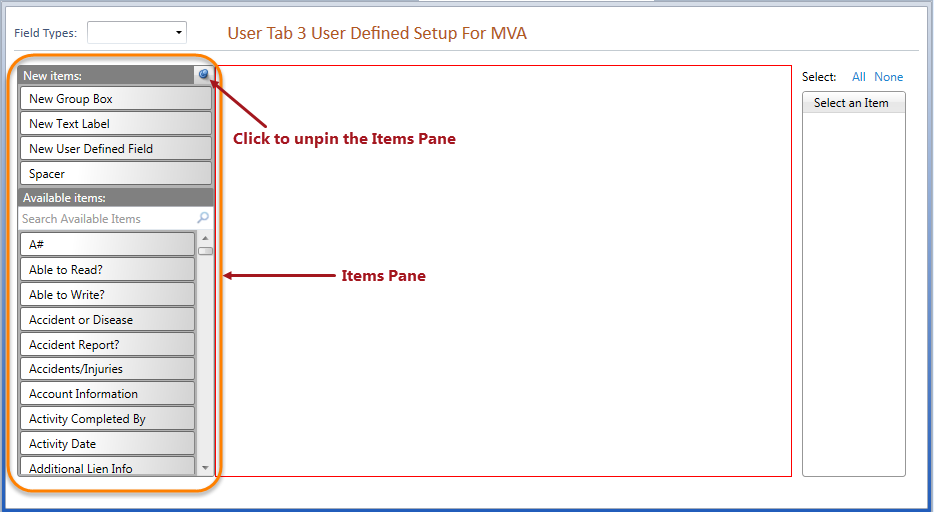
There are several types of New Items that can be added to the Design Layout Screen, including New Group Box, New Text Label, New User Defined Field and Spacer. Drag and drop a new item to add it to the Design Layout Screen.
A group box allows the designer to easily organize a group of fields together on the screen. Once a new group box has been added to the Design Layout Screen, use the Properties Pane on the right-hand side to change the header and orientation, alignment, spacing and padding.
A text label can used for descriptive labels or special instructions for the user. Once a new text label has been added onto the Design Layout Screen, use the Properties Pane on the right-hand side to change the text label and color, alignment and padding.
New user defined fields can be created to accommodate a firm's particular data needs. Once a New User Defined Field has been created and added to the Design Layout Screen, use the Properties Pane on the right-hand side to change the alignment, label and padding.
Because the Design Layout Screen automatically aligns fields based on the available space on the screen, sometimes a spacer can be used to manually add a hard space where desired to aid in legibility and organization of items on the screen. Once a spacer has been added to the Design Layout Screen, use the Properties Pane on the right-hand side to change the alignment.
The Available Items list is comprised of all of the user defined fields added to the database through the process of designing user defined screens. Existing fields in the Available Items list can be filtered using the Field Types dropdown, depending on the type of screen. Fields can also be searched using the search field at the top of the list.
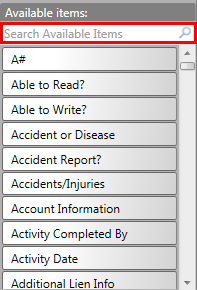
The Available Items list will be blank when creating the first user defined screen for the first Case/Matter Type in the system. Once created in any case type, the user defined field(s) will display in the list.