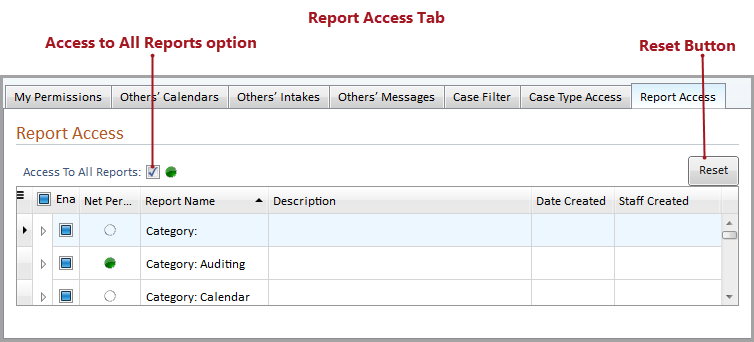
The Report Access tab allows a staff’s access to reports within Needles to be configured. The grid displays the Report Name, Description, Date Created and Staff Created columns from the Report Library and is inherited from the Permission Groups Directory >Report Access tab by default, if that staff is a member of one or more groups. When Report Access is inherited, all check boxes will be solid. Refer to the My Permissions Key for more information. The Net Permissions column displays the overall permission for each report category and individual report.
To grant a staff access to all reports,
The selected staff will have access to all reports in Needles. Review the staff’s permission for User Defined Reports to ensure they can access reports as needed.
A staff may be given access to report categories or specific reports when the Access To All Reports check box is deselected.
To grant access to specific report categories or reports,
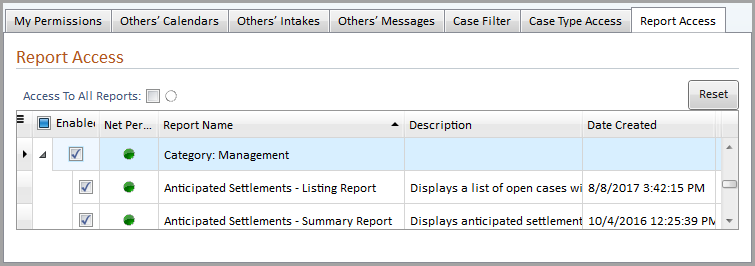
The selected staff will only have access to the reports or report categories selected in the Report Access grid.
If Access To All Reports is deselected and there are no reports or report categories selected in the grid, the staff will not have access to any reports in the Report Library.
A staff’s Report Access tab can be reset to inherit from the Permission Groups > Report Access tab of the group(s) where that staff is a member.
To reset report access,
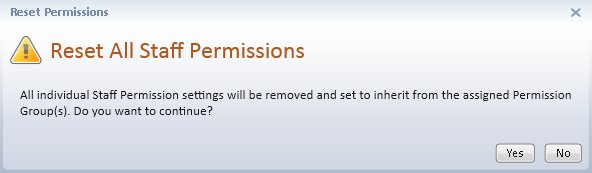
The selected staff’s Report Access tab has been reset from the permission group(s) in which they are a member. They will only have access to reports or report categories that display a green status icon.