ADVANCED PROVIDER SEARCH
Using the advanced Provider Search option allows for more advanced searches
to be performed to find providers using multiple search criteria. Providers
in Needles can be searched using criteria such as roles, specialties and/or
export witness. For example, sometimes it is useful to search providers
when looking for a court reporter close to a particular area or find an
expert witness in a particular field (role) who is located in a certain
state. Search results for providers are displayed in the Search
Results Tab Window. The results window is tailored to display as much
information based on the type of search conducted.
The Provider Search button
opens the Provider Search Criteria window, which displays four different
tabs to further define provider search criteria.
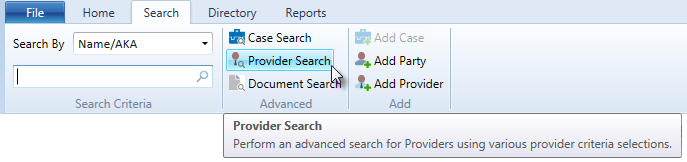
To perform an advanced provider search,
- Select the Search
tab ribbon.
- Click the Provider Search
button in the Advanced ribbon group. The Provider Search Criteria
window will display.
- Select the desired criteria
from any of the four criteria tabs. Each criteria tab is described
in the following sections.
- Click the OK
button to initiate the advanced provider search. Any matching results
will display in the Names
Results List.
- Click the Cancel
button to abort the search and close the Provider Search Criteria
window.
The Provider Search Criteria window contains the following four criteria
tabs to further define a search by provider information:
General
The Provider Search Criteria window always opens on the General tab.
To search for providers using the General tab information, individual
criteria or a combination from the Expert Witness or Date of Birth criteria
areas can be selected to further refine the search.
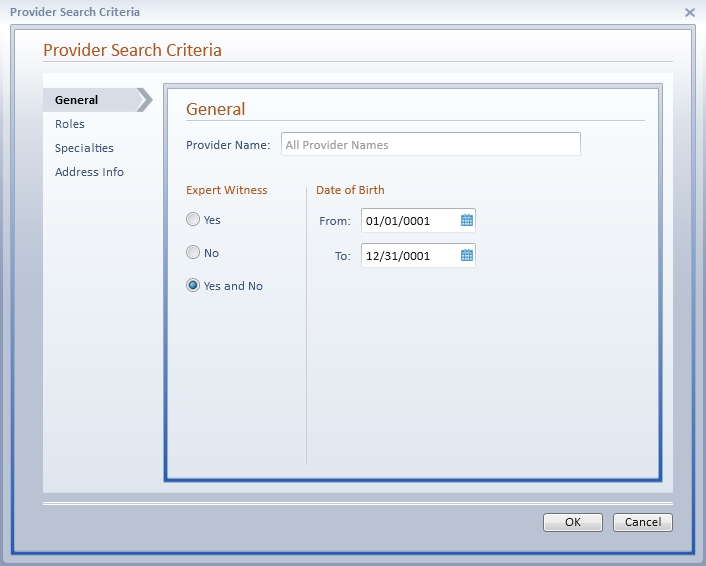
- Provider Name – Search all
provider names when the Provider Name field is blank or enter a fragment
to search for a specific provider.
Enter the first few letters
to find provider names that begin with the entered text or use a hyphen
to find provider names within a specific range, such as “AB-AC”.
- Expert Witness
– This option allows the search to be limited to providers where the
Expert Witness check box is selected or unselected. Select Yes,
No, or Yes
and No to get all providers.
The default setting is Yes
and No.
- Date of Birth
– The default setting is any birthday (1/1/0001 to 12/31/0001). Example:
To find all birthdays in the month of October, change the range to
10/1/0001 to 10/31/0001. You can also either enter a date directly
into the field or click the calendar
icon to select a specific date.
Roles
To search for providers using the Provider Roles tab information, you
can select criteria for all Provider Roles or for one or more selected
Provider Roles.
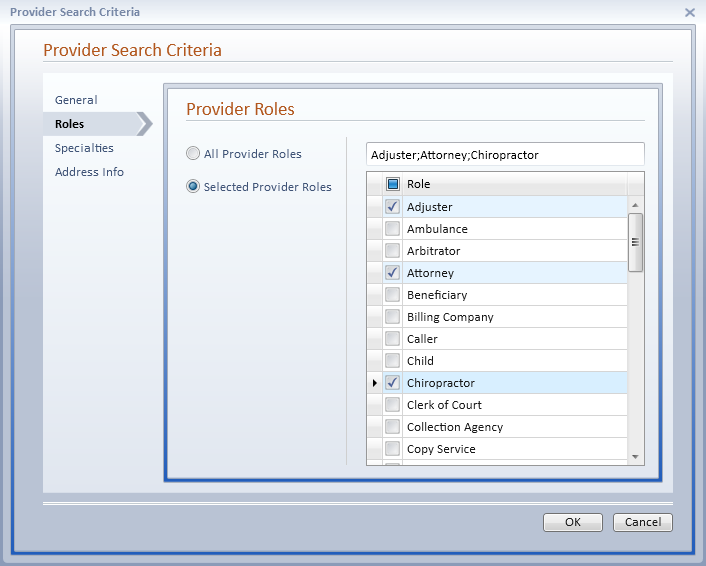
- All Provider
Roles - Select the All Provider Roles option to include all
names for all Provider Roles. This is the default setting.
- Selected Provider
Roles - Select one or more Provider Roles to include all names
where the selected Provider Roles are assigned.
Specialties
To search for providers using the Provider Specialties tab information,
you can select criteria for all Provider Specialties or for one or more
selected Provider Specialties.
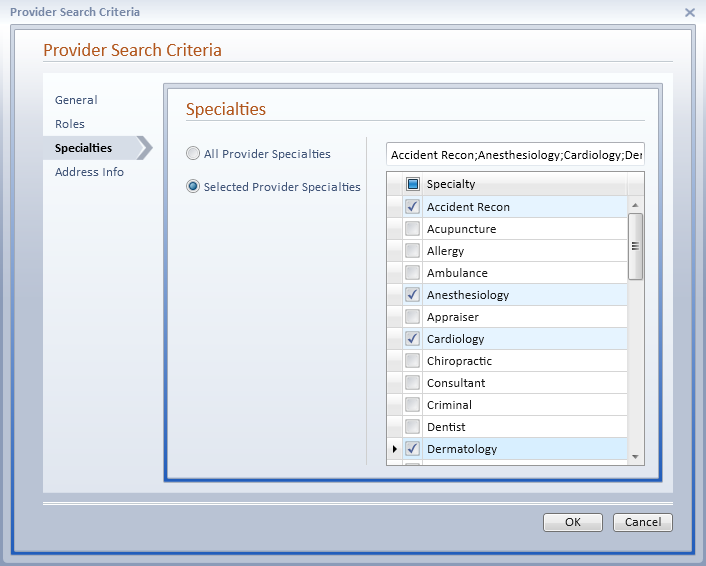
- All Provider
Specialties - Select the All Provider Specialties option to
include all names for all Provider Specialties. This is the default
setting.
- Selected Provider
Specialties - Select one or more Provider Specialties to include
all names where the selected Provider Specialties are assigned.
Address Info
To search for providers using the Address Info tab
information, you can select criteria to find providers using City, County,
State, Zip Code and Country. Complete address details or fragments may
be entered in the Address Info tab.
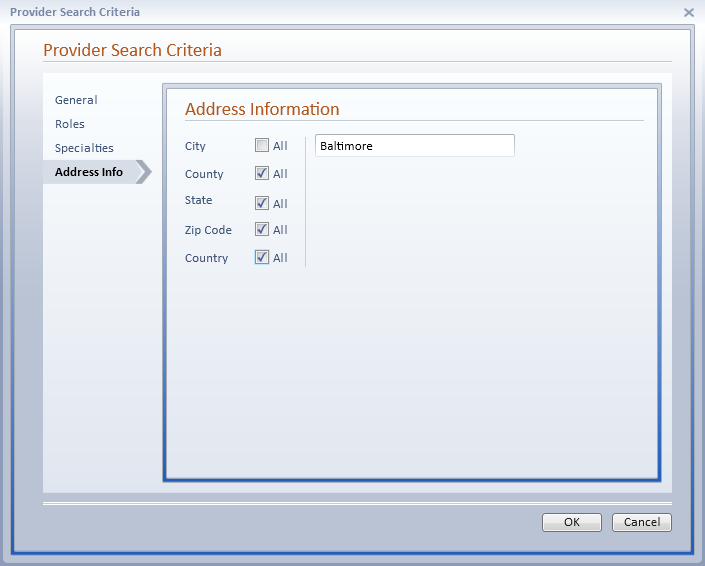
- City
– Leave the All check
box selected to search all cities or deselect to enter the City
name.
- County
– Leave the All check
box selected to search all counties or deselect to enter the County name.
- State
– Leave the All check
box selected to search all states or deselect to enter the State
abbreviation. Desired states can be selected using the corresponding
check box.
- Zip
Code –Leave the All
check box selected to search all zip codes or deselect to enter the
Zip Code.
- Country
– Leave the All check
box selected to search all countries or deselect to enter the Country.