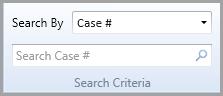
If you know information about the case, you may retrieve it using any of the following criteria:
When a different criteria option is selected, any text in the search field will be cleared. Below is a description of how each different criterion can be used to search for a case in Needles.
Needles automatically generates the Needles case number. Cases are assigned consecutive numbers as they are entered into the system, beginning with the number 200001.
To retrieve a case using the Needles case number,
 at the end of
the text field or hit ENTER
to run the search.
Any matching results will display in the Case Results List.
You can omit the '2' and leading zeros from the case number when searching to quickly retrieve the case. For example, case number 200037 can be searched by entering the number 37.
The Alternate case number is optional and is determined by your firm’s case numbering system. Some firms use different internal file numbering in use in their office or perhaps to track important administrative numbers relevant to the case type. The Alternate case numbers are defined on the General tab for each case type in the Case Type Directory. The Alt Case # is sometimes used when integrating with a document management program. See Selecting the Document Manager and Viewers for more information. The system allows for two Alternate case numbers per case type so the search is performed using both the Alternate Case #1 and Alternate Case #2 fields.
To retrieve a case using an Alternate case number,
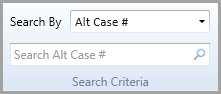
at the end of
the text field or hit ENTER
to run the search. Any matching results will display in the Case Results List.
You may search for all cases that start with a fragment of the Alternate case number using a percent sign (%) as a wildcard. For example, to find all cases in Needles with Alternate case numbers that start with “M”, you would enter “M%” in the search text field. All cases with or without Alternate case numbers may be retrieved using just “%”.
To retrieve a case using the date of incident,
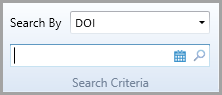
at the end of
the text field or hit ENTER
to run the search. Any matching results will display in the Case Results List.
When a number is entered, the default date format will display in the search text field, so you do not need to enter a slash in your search.

To retrieve a case using the case open date,
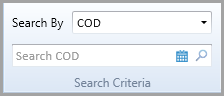
at the end of
the text field or hit ENTER
to run the search. Any matching results will display in the Case Results List.
When a number is entered, the default date format will display in the search text field, so you do not need to enter a slash in your search.
To retrieve a case using the Case Title,
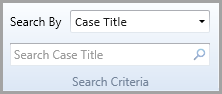
at the end of
the text field or hit ENTER
to run the search. Any matching results will display in the Case Results List.
You may search for all cases that start with a fragment of the case title using a percent sign (%) as a wildcard. For example, to find all cases in Needles with case titles that begin with “G”, you would enter “G%” in the search text field. All cases with or without case titles may be retrieved using just “%”.
To retrieve a case using the Docket number,
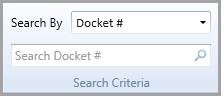
at the end of
the text field or hit ENTER
to run the search. Any matching results will display in the Case Results List.
You may search for all cases that start with a fragment of the docket number using a percent sign (%) as a wildcard. For example, to find all cases in Needles with docket numbers that start with “0”, you would enter “0%” in the search text field. All cases with or without docket numbers may be retrieved using just “%”.
To retrieve a case using the claim number on the Insurance tab,
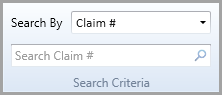
at the end of
the text field or hit ENTER
to run the search. Any matching results will display in the Case Results List.
You may search for all cases that start with a fragment of the claim number using a percent sign (%) as a wildcard. For example, to find all cases in Needles with claim numbers that start with “1”, you would enter “1%” in the search text field. All cases with or without claim numbers may be retrieved using just “%”.