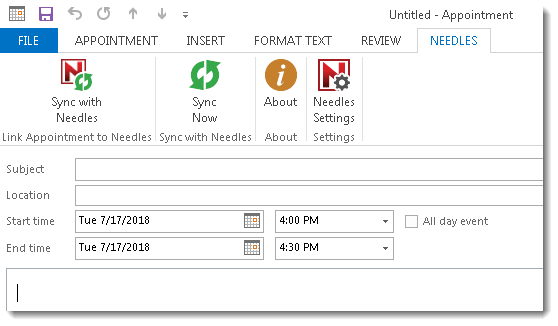
New or existing Appointments in Outlook can be linked to Needles based on synchronization settings in Outlook and default settings in Needles.
Whether using Needles or Outlook as your default calendar, linking Outlook appointments to Needles cases is done in a manner similar to posting an email.
When synchronization is enabled in the Staff Directory > Outlook tab, appointment details will automatically update between the Needles calendar and the Outlook calendar using the Bidirectional With Delete setting. Review Activating Appointment Syncing for more details.
A Sync with Needles button will display on the NEEDLES ribbon in Outlook of a new or existing appointment that has not yet been synced with Needles.
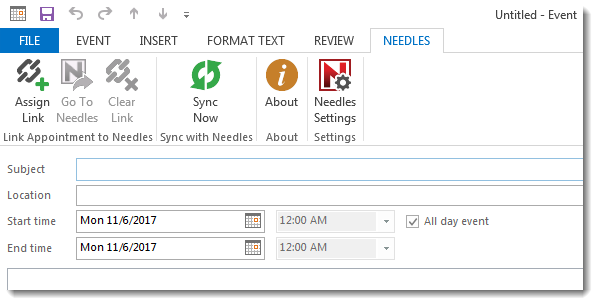
If Outlook is set as the default calendar, instead you will see the Assign Link button.
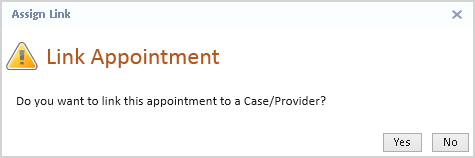
When creating a new Outlook appointment, clicking the Sync with Needles button will display the following prompt.
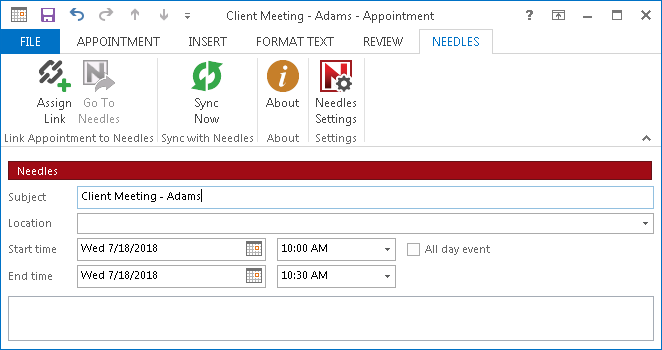
When an Outlook appointment is synced to Needles and there is no linked case or provider, the Needles category will be visible with the option to Assign Link. Until a link has been created, the Go To Needles button will be disabled.
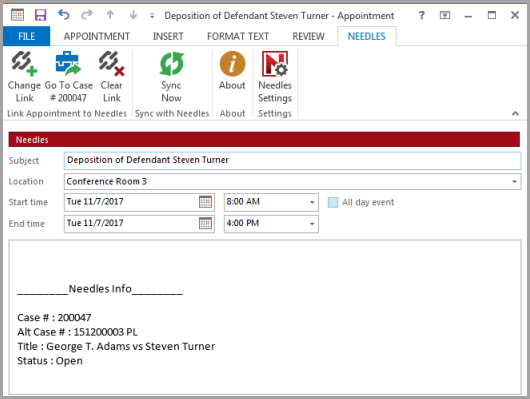
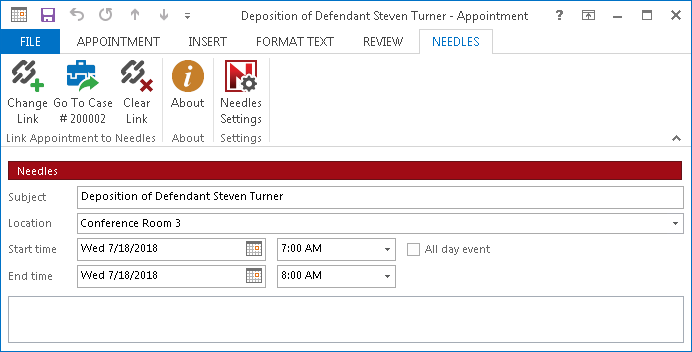
Once an appointment has been linked to a case or provider in Needles, you can change the link to a different case or provider, go directly to the linked case number or provider name, or clear the link altogether.
Clicking the Assign Link button of a new appointment in Outlook will open the Needles Outlook Search window where you can choose a case number or provider name.
Once the appointment is linked to a case or provider in Needles, you can change the link to a different case or provider, go directly to the linked case number or provider name, or clear the link altogether.
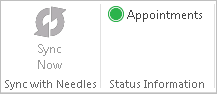
New and modified appointments are automatically synced between Outlook and Needles every 30 seconds. However, you may want to immediately sync items at your convenience using the Sync Now button on the NEEDLES ribbon.

When the Sync Now button is clicked, the button will become disabled and the Appointments Status Information icon will change color to show that the sync is currently in progress.
When an appointment is synced to a Needles case number or provider name, the Go To Needles button will become accessible and change to “Go To Case #” or “Go To Provider”.
If Needles is not currently running, the Login screen will display when you click the Go To Needles button. After you have logged in to Needles, the Go To Needles process will continue.