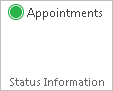
When Appointments synchronization is enabled, you will see a Status Information section on the NEEDLES ribbon in Outlook. The Appointment status icons will change colors, and when hovering, will give you information about each sync status.
Synchronization is enabled. When hovering, a tooltip will display the date and time of the last sync between Outlook and Needles.
Synchronization is currently in progress. When hovering, a tooltip will display the current number of the total appointments syncing between Outlook and Needles. The enabled Appointments synchronization will automatically refresh every 30 seconds and will display yellow during that time.
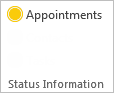
The current user lacks required permission to the Outlook Sync Settings or the synchronization has been disabled. When hovering, a tooltip will display with the corresponding reason.
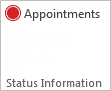
If there is an issue with your server connection, the status icon will display red. The add-in will attempt to reconnect a maximum of 10 times. Review Troubleshooting Outlook Integration Issues or contact your system administrator if the Outlook add-in cannot reconnect to your server.