 is clicked while a case is open and active.
 is clicked on the header band of the detail view of a credit Value
item in a case.
Before a deposit request can be exported to your accounting system, it must be created using information from Needles. You may request a deposit from an existing Value item. You may request full or partial payments. Needles updates the Value item information appropriately when the deposit are exported by the bookkeeper. If a deposit request is not created from an existing Value item, a Value item is created from the deposit request information upon processing the request. Deposits can be requested in Needles by using the Request Deposits button or from an existing Value item.
Users must have proper permissions to Request Deposits and Export Deposits.
A Deposit Request tab window will display when:
is clicked while a case is open and active.
is clicked on the header band of the detail view of a credit Value
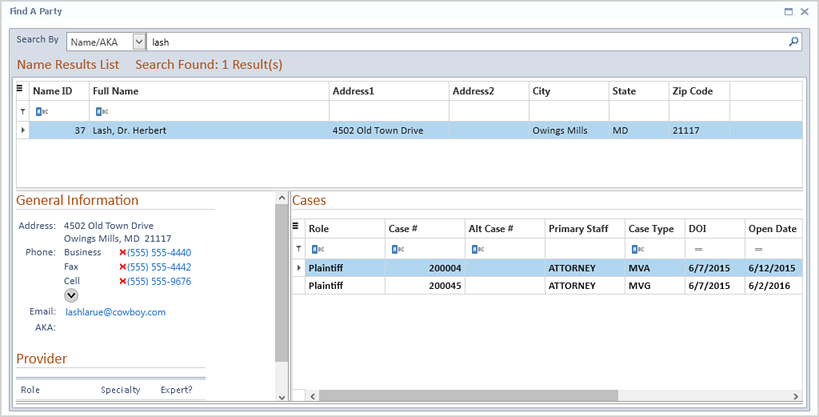
item in a case.When no cases are currently open or active, clicking the Request Deposits button on the Accounting ribbon will display the Find A Party search window. Perform a search for the selected criteria to find the Party and double-click to select a case that pertains to the desired Party.
When a case is open and active, with any tab selected, click the Request Deposits button on the Accounting ribbon.
When a Value item in a case is selected, click the Request
Deposits button  in the gray header band on the
detail view of the Value item. The Request Deposits button is only available
when in a ‘Debit’ Value item with a Due amount greater than zero.
A Deposit Request tab window will display in detail view with the Party
and Case # from the selected case. All corresponding fields will be pre
populated in the Deposit Request tab entry when selected from a Value
item. However, if the Request Deposits button  is clicked,
no Value-related fields will be entered.
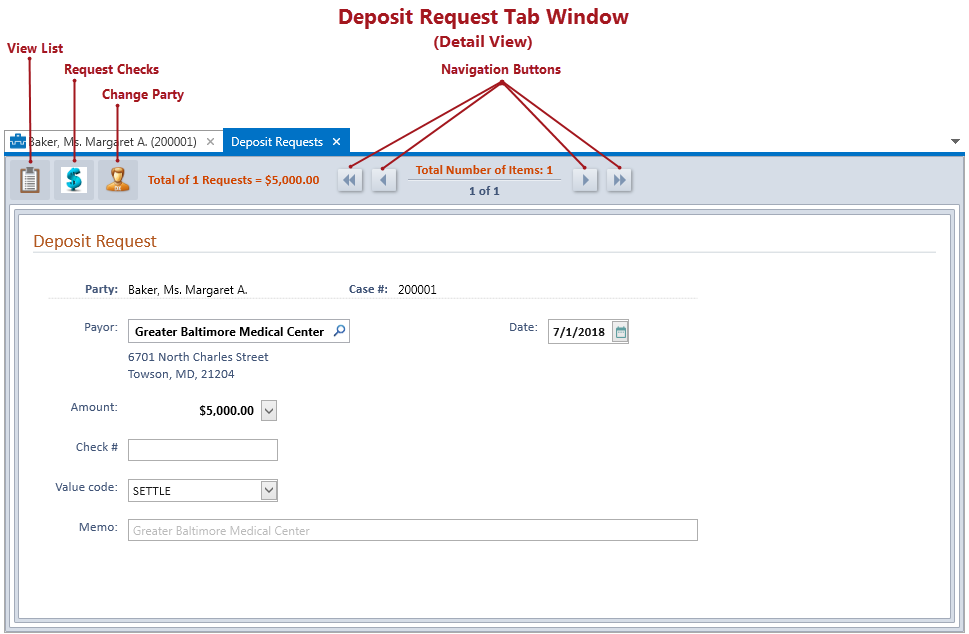
In this view, only one deposit may be requested at a time.
If fields have been entered and the Add  or Request
deposit button is clicked,
a new deposit Request screen will display. However, your previously entered
requests can be viewed by using the View
List
 button or by
clicking on the navigation arrows
on the header band to page thru the different requests.
The gray header band across the top of the Deposit Requests tab window contains options for accessing and handling deposit requests.
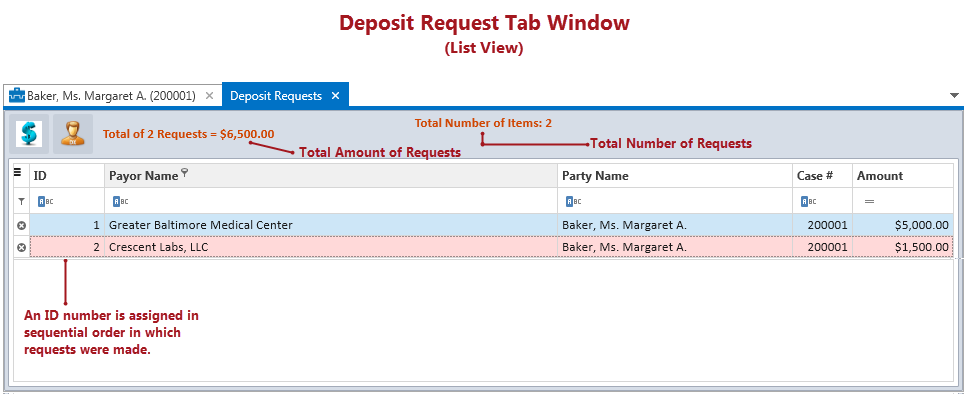
Clicking on the View List button on the Detail View header band will
display the Deposit Request List View of pending deposit requests that
have been entered but not saved (processed). A header band is displayed
showing the total number of deposit request items with the total amount
of the items requested. Below the header band is the list of deposit request
items displayed in a grid
containing the default columns: ID, Payor Name, Party Name, Case #, and
Amount. The requests grid can be filtered,
searched,
printed
or exported
to a file by clicking the hamburger  icon in the upper left corner. Each request item will be displayed as
a row in the grid. Double-clicking a row will open the detail view of
the selected deposit request item.
Generally, the staff working on the case will request and process the deposit requests, while the accounting staff will complete the exporting process to send the requests to the accounting program.