Accessing Mini Directories
To access the Mini Directories, click the Mini
Directories button
in the Directory Editors group on the Directory ribbon.
You will need permission to the Mini
Directories in order to access them.
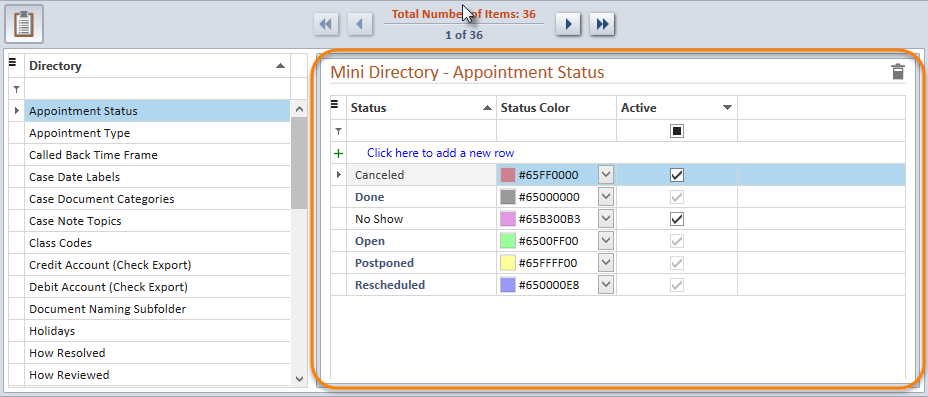
The Mini Directories window displays two panes:
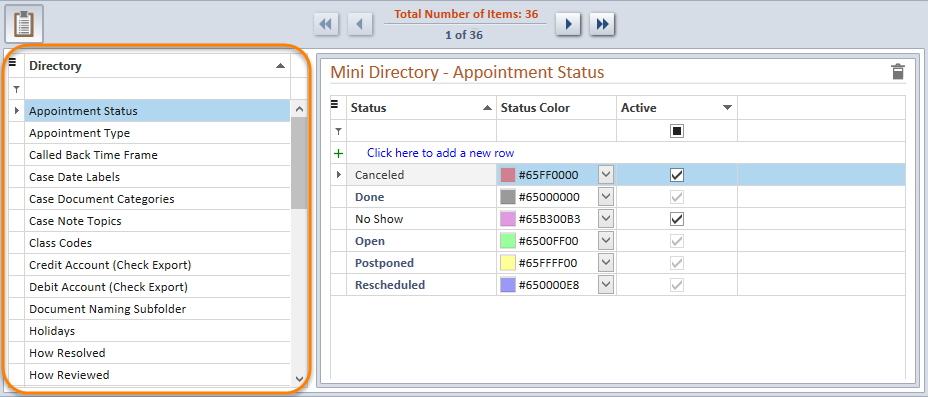
Directory Pane
The Directory Pane is located on the left side of the Mini Directories
window and displays a grid
listing each of the standard Needles Mini Directories. Select a Mini Directory
Name from the grid to view the list of items in the Items Pane to the
right or use the navigation buttons to page through the different Mini
Directories. The Directory grid can be filtered,
searched,
printed
or exported by clicking the hamburger  icon in the upper left corner and selecting the appropriate option from
the menu. Once a Mini Directory is selected in the Directory Pane, the
header bar displays with available options and the items in the Mini Directory
are displayed in the Items Pane on the right.
Items Pane
The right-hand pane shows a grid
listing items in a selected Mini Directory. The name of the currently
selected Mini Directory will be displayed above the grid. Columns for
particular to each mini directory will be displayed and are described
in more detail in the individual sections for each Mini Directory. Click
on the grid's hamburger menu  to filter
or search
the list of items in a Mini Directory. Columns can be rearranged and the
layout can be saved or reset. The current grid view can be printed
or exported.