Accessing a CRM Screen
In order to access the CRM Tab user defined screen for a Case Type,
you will need permission to the CRM
Tab, Case
Type Directory and User
Defined Screens.
To access the CRM Tab user defined screen for a Case Type,
- Click on the Case Types
button on the Directory ribbon.
- Double-click on the desired Case
Type.
- Click on the Tab
Setup Tab.
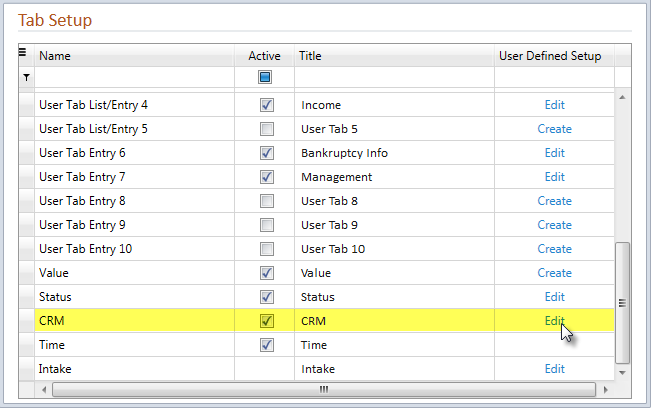
- A Create hyperlink will display next to the CRM Tab when
a user defined screen has not yet been defined. Click on the Create hyperlink next to the CRM
Tab to create a new user defined screen. A prompt will display offering
an option to copy
the CRM Tab from another Case Type.
- An Edit hyperlink will display when a screen has already
been defined. Click on the Edit
hyperlink to modify
an existing user defined screen.
- The selected Screen
Layout Designer Window will display.
The CRM tab does not need to be active in order to access
the CRM User Defined Setup. However, the Active check box must be selected
in order to view the CRM tab in a Case Folder.