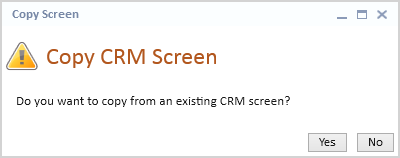
The ability to copy an existing screen of the same type is available to assist in quickly setting up your case types and ensuring consistency of field and layout design across your system.
If the selected CRM user defined tab has been designed in another case type, clicking the Create hyperlink on the Tab Setup Tab will prompt a message to display offering the option to copy the user defined setup from the same tab of another case type.
The selected CRM Tab does not need to be active in order to access the User Defined Setup. However, the Active check box must be selected in order to copy the selected tab in a Case Folder.
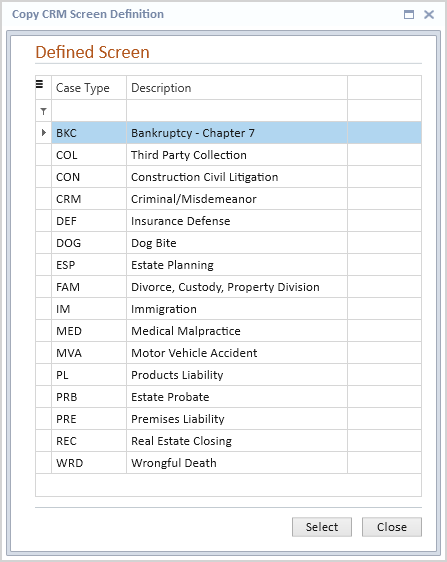
All user defined items from the selected Case Type will display on the newly created Design Layout Screen.