will display next to
the Companion Cases tab.
To access the Companion Cases tab, navigate to a Case Folder and select
the Companion Cases tab. If the current case is a member of one or more
companion groups, this icon will display next to
the Companion Cases tab.
You will need permission to the Companion Cases Tab in order to access the tab in the Case Folder.
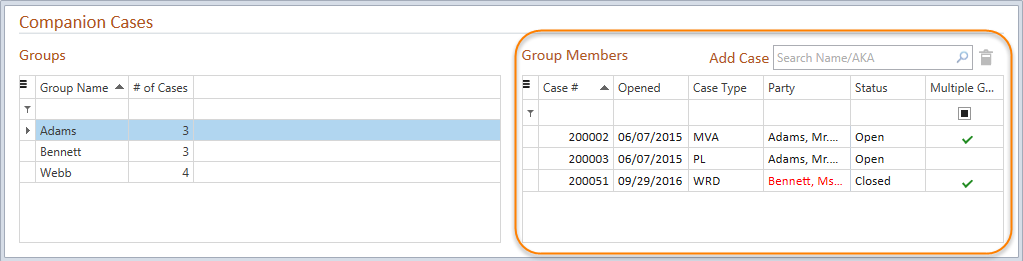
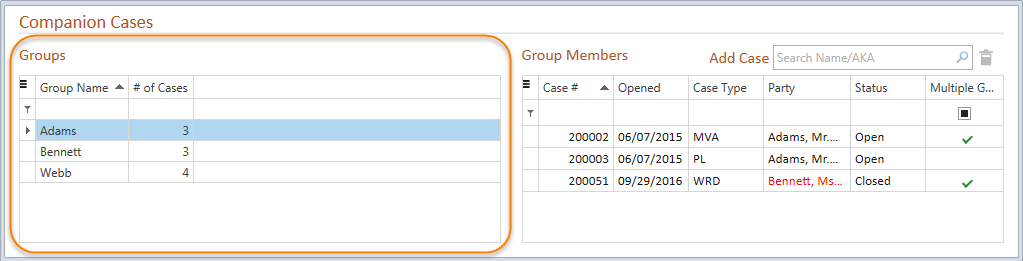
The Companion Cases tab displays two panes:
The Groups pane contains a grid
listing Companion groups where the current case is a member. The name
of a group is displayed in the Group Name column. The number of cases
that are members of a group are listed in the # of Cases column. The Groups
grid can be filtered, searched, printed or exported by clicking the hamburger
 icon in the upper left corner.
The Group Members pane contains a grid
listing case members in a selected Companion Cases group. Default columns
include Case #, Opened, Case Type, Party, Status, and Multiple Groups.
Additional columns may be added to the grid using the Column
Choosers option on the right-click menu. If a case is a member of
multiple Companion groups, an icon  will
display in the Multiple Groups column. Double-clicking on a case row in
the Group Members list will open the companion case.
Review Adding a Case to a Companion Group for details on the Add Case text field and Deleting a Case from a Companion Group for details on removing case members from Companion Groups.