Deleting a Case from a Companion Group

Within the Companion Cases tab of a Case Folder, you can remove the current case or other case members from one or more selected companion groups where the current case is also a member.

Deleting the Current Case from a Group

To remove the current case from companion groups,

  1. Select the Companion Cases tab in the desired Case Folder.
  2. In the Groups Pane, select the Group Name(s) that you would like to remove, and click the Delete button on the Case ribbon. A confirmation message will display to confirm the removal.
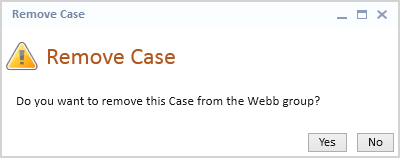
When deleting multiple groups at a time, a single warning message will display for each Companion group selected for deletion.

  1. Click the Yes button to remove the current case from the selected Companion group. Click the No button to cancel the process.
  2. Click the Save button to keep your changes. The selected Companion Group(s) will be removed from the Groups grid in the Companion Cases tab for the current Case Folder.

When the Delete button is clicked for a Companion group where the current case is the only member, the entire Companion group will be deleted from the Companion Groups Directory.

Deleting Other Cases from a Group

Other case members can be removed from a Companion Group directly from the Companion Cases tab of a Case Folder.

To remove other case members from a Companion group,

  1. Select the Companion Cases tab in the desired Case Folder.
  2. In the Groups pane, select the desired Group Name. Select the case(s) you would like to remove from the Companion group in the Group Members pane.
  3. Click the Delete icon above the Group Members pane.

The Delete icon will be disabled if the current case is selected.
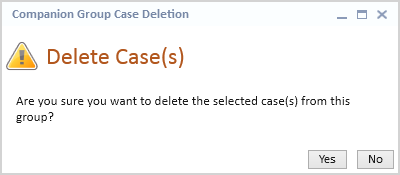
  1. Click the Yes button to remove the case(s) from the selected Companion group.
  2. Click the Save button to keep your changes. The selected case(s) will be removed from the Group Members pane for the selected Companion group.