Adding a Provider Associations Group
New provider association groups can be created using the Provider
Associations Directory as well as directly from the Associations tab
in a Provider Folder. From the Associations tab, you can add the current
provider to existing association groups and also create new provider association
groups in which to associate a provider.
Adding an Existing Group
To add an existing Associations group:
- While on the Associations tab in a Provider Folder, click
the Add
 button on the Provider ribbon.
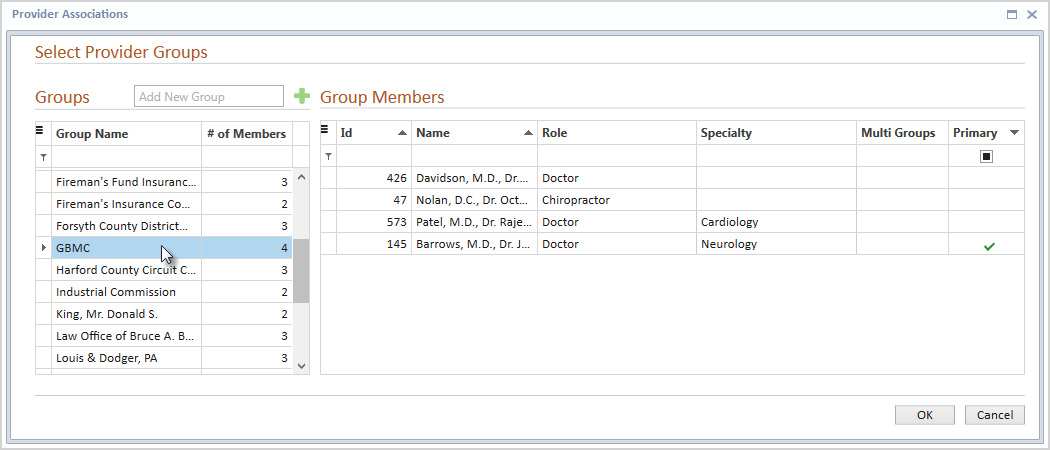
- The Provider Associations window will display with two
grids: Groups and Group Members. These grid
panes show a list of all association groups and provider members from
the Provider Associations Directory.
- Select an existing group from the Groups grid that you
would like to add to the current provider.
Use the filter
row at the top of the Groups grid to quickly find an existing group
by name.
- Click the OK
button to add the selected group into the Groups grid of the Associations
tab. The current provider will be added as a member to the selected
group. All group
members, including the current provider will be listed in the Group
Members grid.
- Click the Save
button to keep your changes.
Adding a New Group
If none of the existing Association groups fit your present needs, you
may want to create a new group. This can be done directly from the Associations
tab.
To create a new Associations group,
1. Click
the Add button on the Provider
ribbon to display the Provider Associations window.
- Click the Add
button on the Provider ribbon. The Provider Associations
window will display.
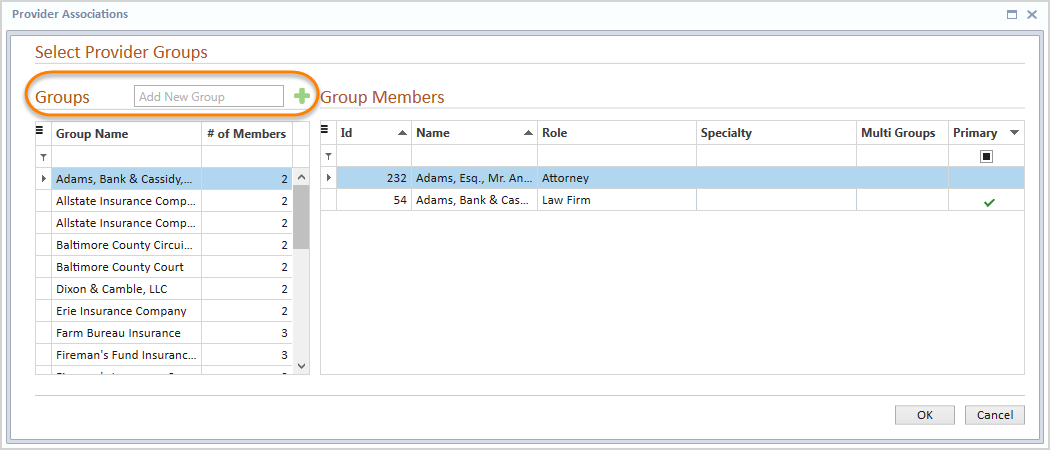
- Enter a unique group
name into the Add New Group text field, and click the Add icon
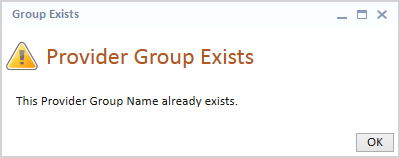
 at the end of the text field. If
a group name is entered that already exists, you will see the following
warning message. Click the OK
button to return to the Provider Associations window.
- Click the OK
button on the Provider Associations window to insert the new group
into the Groups grid pane. The current case will automatically be
added and appear in the Group Members grid pane on the Associations
tab.
- Use the Add Provider
text field to add additional provider members to the new group.
- Click the Save
button to keep your changes.