Processing Check Requests
Checks must be “processed” for the requests to be available for exporting
to a file or directly to an accounting program. Once a check request is
processed, it is no longer listed in the Check
Requests List View and is no longer available for modification. Check
requests are “processed” upon clicking Save.
To process checks,
- After all changes have been made to the Check Requests
tab, click the Save button
to save and process your requested check(s).
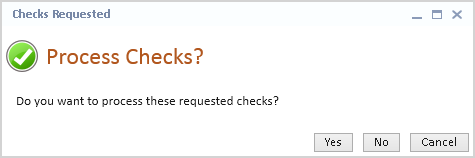
- Click the Yes
button process the requested checks.
- Click the Cancel
button to abort check processing and return to the Check Request
tab window.
- Click the No
button to abort check processing and close the Check Request tab
window. A Delete Check Request message will display warning that
leaving the Check Request screen without processing will delete
all pending checks.
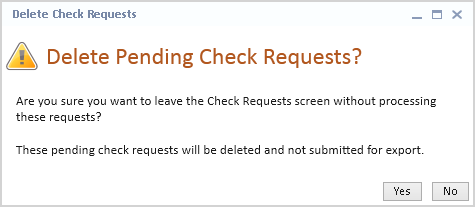
- Click the Yes
button to confirm pending check deletion.
- Click the No
button to keep your pending check requests and return
to the Check Requests screen.
- Close the message by clicking the
X in the upper right corner to Cancel
and return to the Check Requests screen.
When the Yes
button is clicked on the Process Checks message, a Print Preview window
with a Summary of Check Requests will display listing all pending checks
that have just been processed.
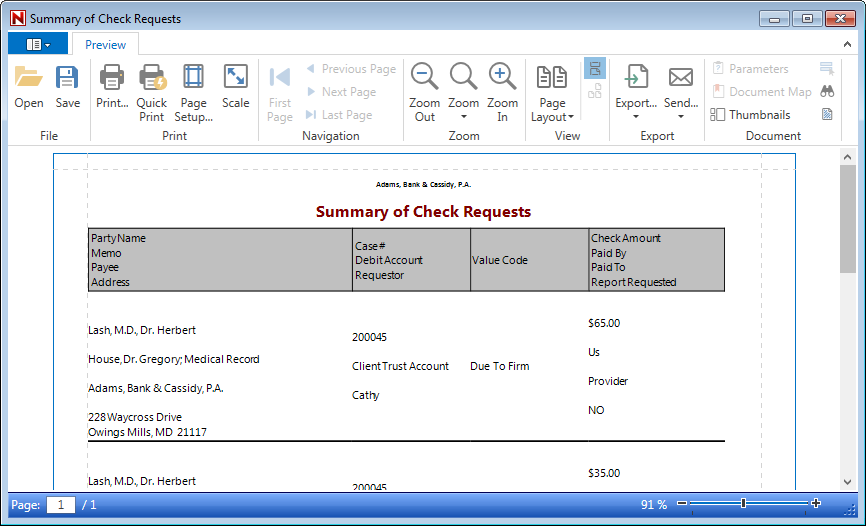
- It is recommended that you print or save a copy of this
report for your records. Once checks have been processed, a Value
item will be created for each processed check request that did not
originate from an existing Value item. The Check Amount from each
check request will populate the Open Requests field on the linked
Value item until the processed request is exported. The Request Check
button will be hidden from the detail view of a Value item when an
Open Request for the full amount Due has been processed.
Check requests will not be sent to your accounting system
until the Export
Checks process is complete.