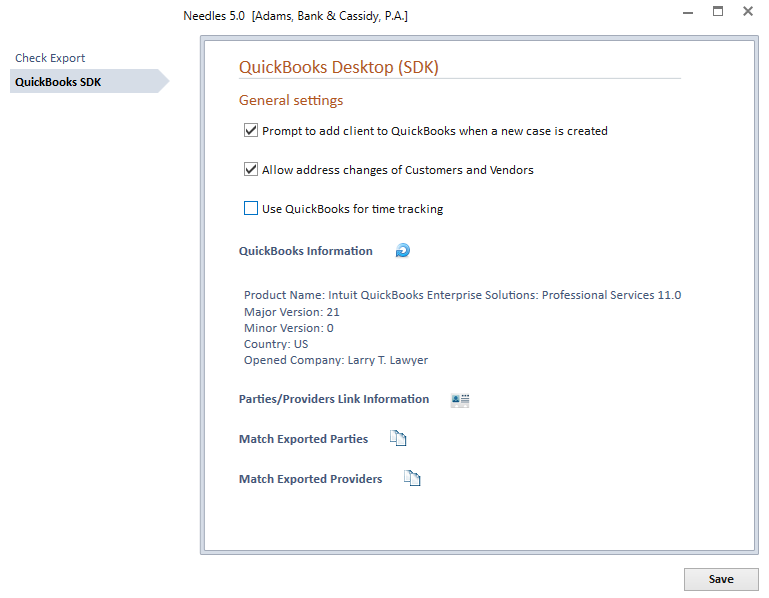
The QuickBooks SDK Tab within Interfaces allows you to specify some general settings and view QuickBooks status information. The tab will not be enabled until the QuickBooks SDK Interface has been selected on the Check Export tab and the appropriate options to set up the interface are selected. Additional settings are available on this tab to further determine how the interface will work between the two programs. The ability to see the company file currently connected, display the Parties/Providers link information for the current company file, and utilities to assist matching providers and parties when switching from the IIF interface to the SDK interface are accessed from this tab.
A user must have the proper permissions to access and modify the QuickBooks SDK Tab.
The following sections will explain the settings and additional utilities available on the QuickBooks SDK Tab to manage the bidirectional flow of information between the two programs.
The general settings allow you to control how the data in Needles will update the data in QuickBooks when a change is made to parties or providers in Needles, and when changes are made to customers or vendors in QuickBooks, the changes are automatically updated in Needles. When adding new names (providers or parties), it is best to add them first into Needles so that the link will automatically be created when it is sent to QuickBooks. You should run the following utilities to complete the necessary QuickBooks setup in order for this bidirectional link to function properly. The following options can be selected:
The QuickBooks Information
section displays the Product Name, Version, Country and the Name of the
currently open Company file in QuickBooks. If you have experienced
a connection issue, clicking on the Refresh  icon
will update the information.
To change to a different company file,
You will want to make sure that Parties and Providers in Needles are properly linked to the Customers and Vendors in the newly selected company file.
The QuickBooks Link Information window will display the details of all links established for the currently connected QuickBooks company, allowing you to manage accounting links from one place.
To access the Parties/Providers Link information,
 icon to display
a window of the current links between Needles Parties/Providers and
QuickBooks Customers/Vendors.
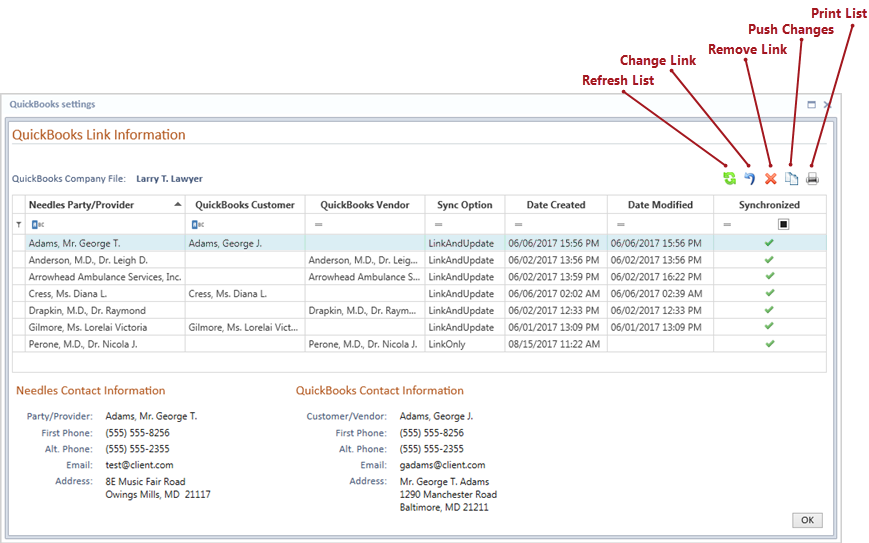
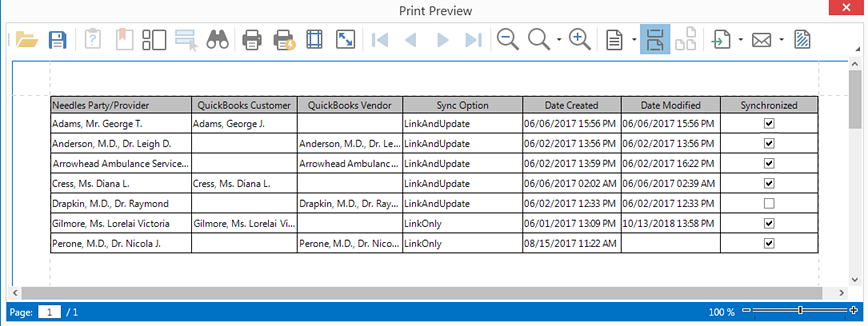
A grid is displayed with columns that pertain to the linked Needles and QuickBooks information.
Select a name from the grid to inspect the fields linked between Needles and QuickBooks or modify the current link information using the icons above the grid.
 icon refresh
the list of linked names to ensure the list includes the latest changes
that may have occurred between the two programs.
 icon to change
the sync option for the selected name.
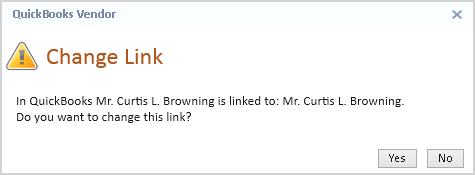
 icon to break
the link for the selected name between Needles and Outlook.
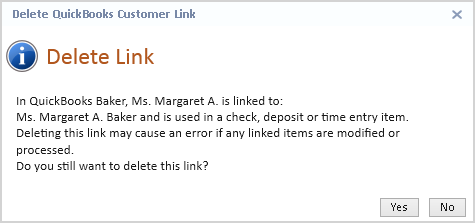
 icon to send
updates from Needles to QuickBooks.
 icon to print the list of links
or export the list to a file.
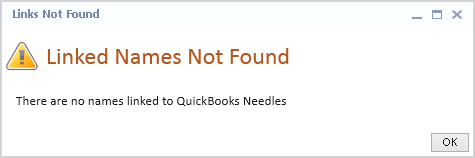
If there are no Parties/Providers that are linked with QuickBooks, a
warning message will display when the Link Information
icon is clicked.
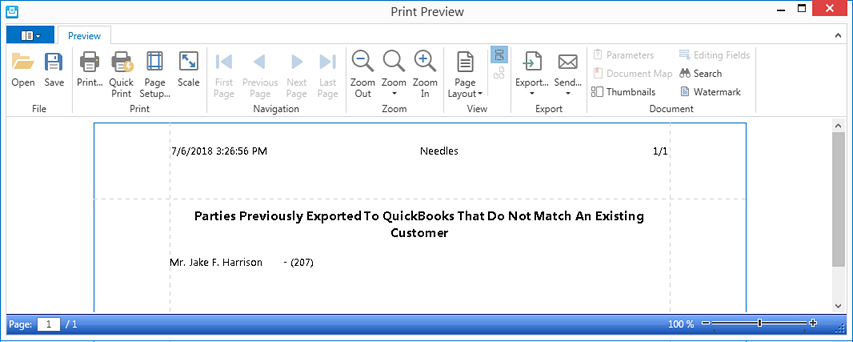
The Match Exported Parties and Providers utilities are only for use by existing Needles/QuickBooks users who have been using the QuickBooks Windows/IIF interface and want to switch to the QuickBooks SDK interface. The utilities will match previously exported parties and providers to customer or vendor names in QuickBooks and create the links. When the utility completes, a report will be generated listing all parties that did not match a customer.
The accounting link for parties and providers that do not match or were never exported but need to be associated with a customer or vendor will need to be manually created.
It is recommended that all new name entries should be entered into Needles first so that the new customers or providers are added to QuickBooks and the accounting link automatically created.
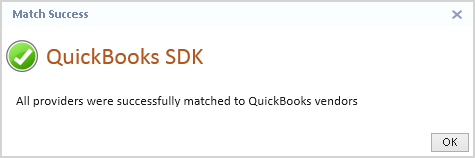
When names have successfully been matched to QuickBooks, a success message for customers or vendors will display.