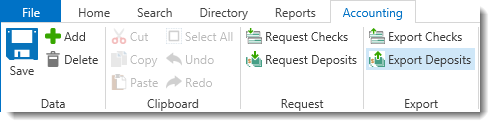
Processed deposit requests can be selected in the Export Deposits tab window to export directly to the open QuickBooks company file when using the QuickBooks SDK Interface. The exported information is also used to create and/or update Value items. QuickBooks will automatically receive the deposit requests upon completion of the Export Deposits process. The QuickBooks SDK interface features bidirectional capabilities that link individual records between the two databases and eliminates the manual import step.
To export processed deposit requests,
 button on
the Accounting ribbon to open the Deposit Export tab window.
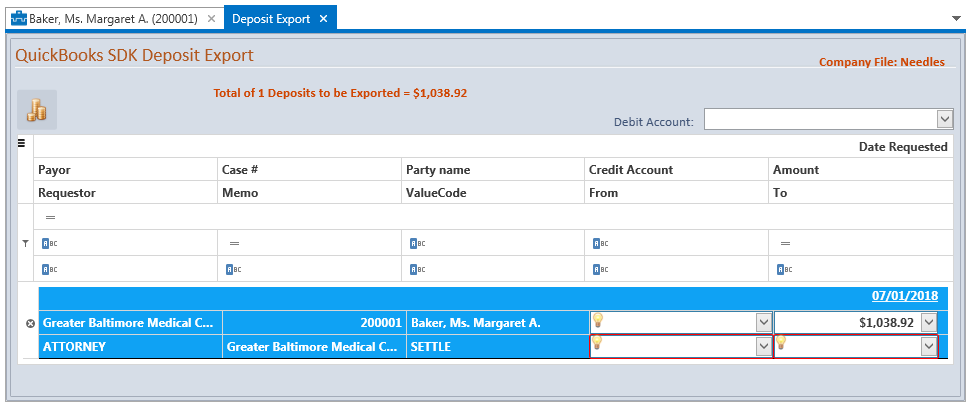
The open QuickBooks Company File will display in the upper right. If you have multiple company files with QuickBooks, ensure that the desired company is open in QuickBooks before exporting deposits.
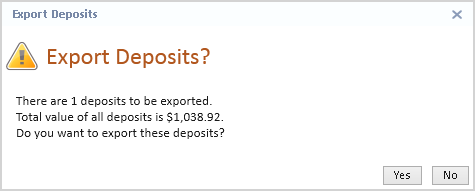
 button to export the
selected deposits. The Export Deposits message will display with the
total number of deposits to be exported with the total value of all
deposits.
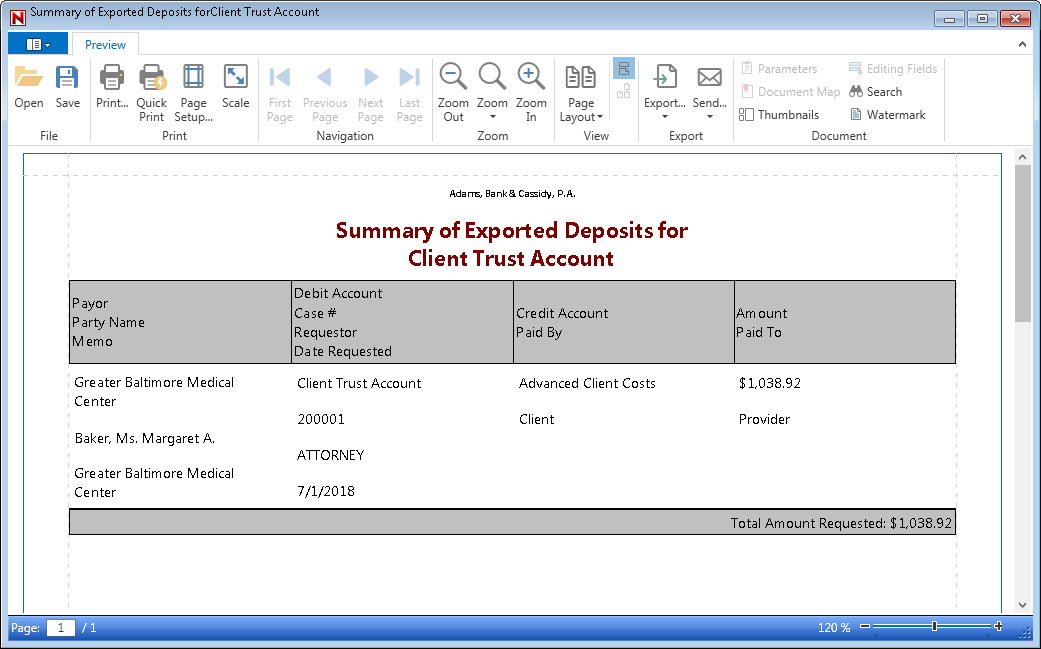
When you close the Summary of Exported Deposits window, the Deposit Export tab will also close. The Due amount of the Value item linked to the selected deposit(s) will be recalculated and the Open Requests field will be reduced by the amount of the exported deposit request. A Value Transaction item will be created for the linked Value item using the Date exported as the Date of the transaction item. If the Value Code of the Value Items are marked as DTF, a linked DTF item will also be created.
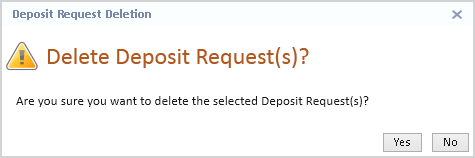
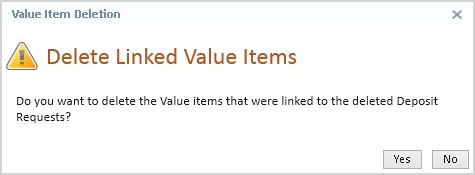
Processed deposits may be deleted from the export window before being exported to QuickBooks.
To delete processed deposit requests,
 button on the Accounting ribbon.
The QuickBooks SDK Interface option does not require manual importing of a file as the system automatically exports the information directly to QuickBooks once you have exported the deposit information and closed the Deposit Export tab window. In addition, once you have exported a deposit to QuickBooks, the check number or void information is sent back to the Needles Value item and is tracked in the Transaction Details.