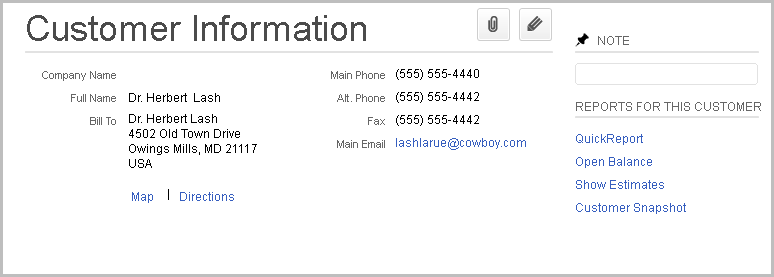
When Checks and Deposits have been exported from Needles, QuickBooks will create Customer and Job records if the Party and Case entered in an exported request is not already linked in QuickBooks. Vendors will be created if the Provider entered in an exported request is not already linked to a Vendor in QuickBooks. This topic will explain what happens in QuickBooks and Needles when checks and deposits have been exported.
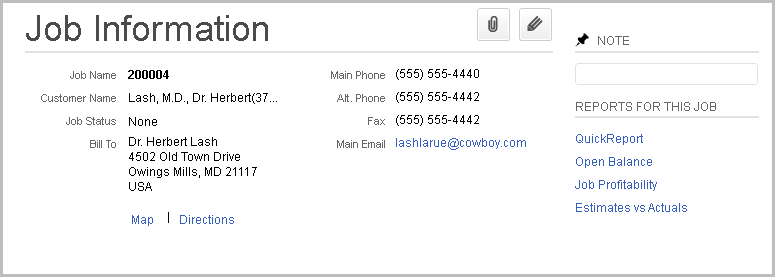
If a Party/Case from an exported check is not already linked in QuickBooks, a new Customer/Job will be created. The Needles case number of the exported check will become the Job number of the linked Customer/Party.
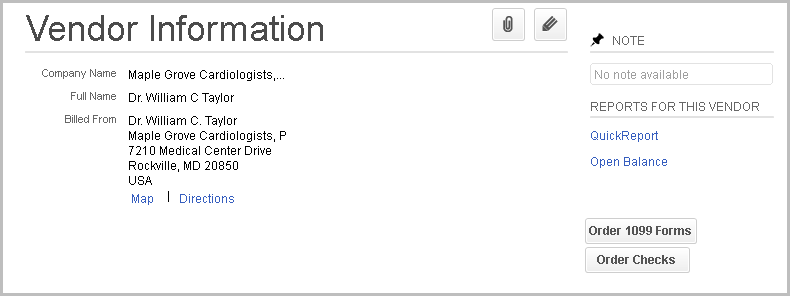
If a Provider from an exported check is not already linked in QuickBooks, a new Vendor will be created.
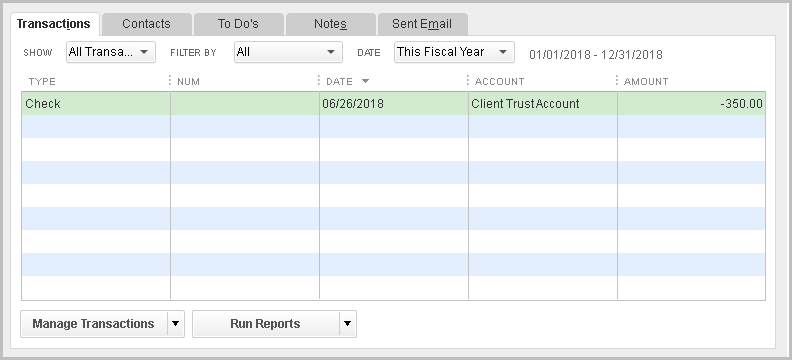
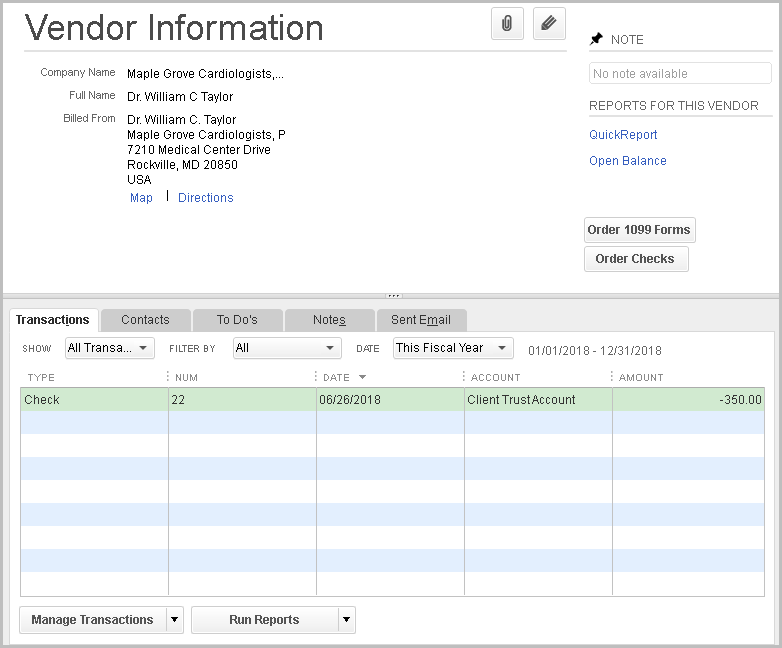
Exported checks will display as transactions under the linked Vendor.
You may also view a list of checks to be printed using the Reminders button on the QuickBooks menu bar.

Double-click the desired check to open the Write Checks screen. Ensure
that the information is correct and click the Print
button  to print the check or batch of checks.
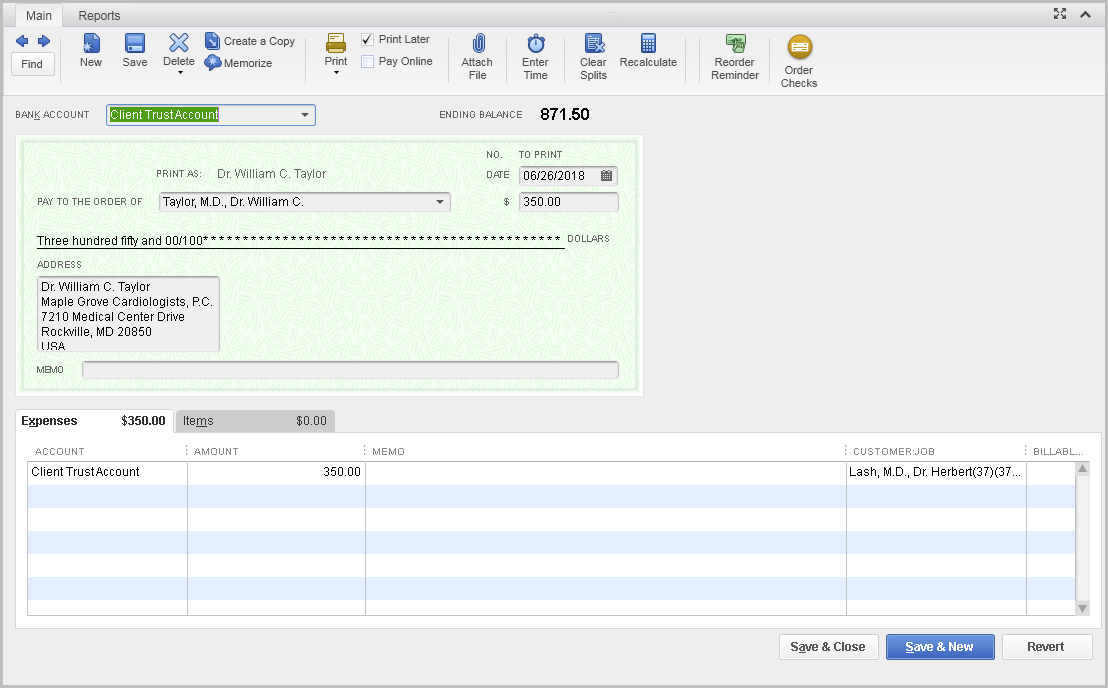
Specify the desired Printed Check Number. This number will be sent back to Needles and applied to the Value Transaction item.
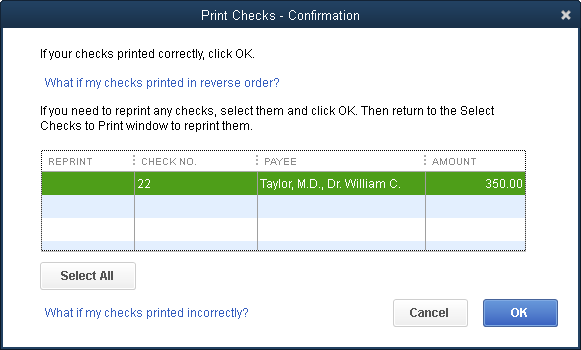
Confirm that your check(s) have printed correctly and click the OK button.
When finished, click either Save & Close or Save & New (to print another check). On the Vendor Information screen, you’ll see that the printed check number is now assigned to the transaction.
When you return to Needles, navigate to the Value tab of the associated Party/Case. If you are currently on the tab, you will need to click the data refresh banner to update the information.

Double-click to open the detail view of the Value item that corresponds to the exported check request. A Value Transaction has been created for this item with the printed check number added to the Reference field.
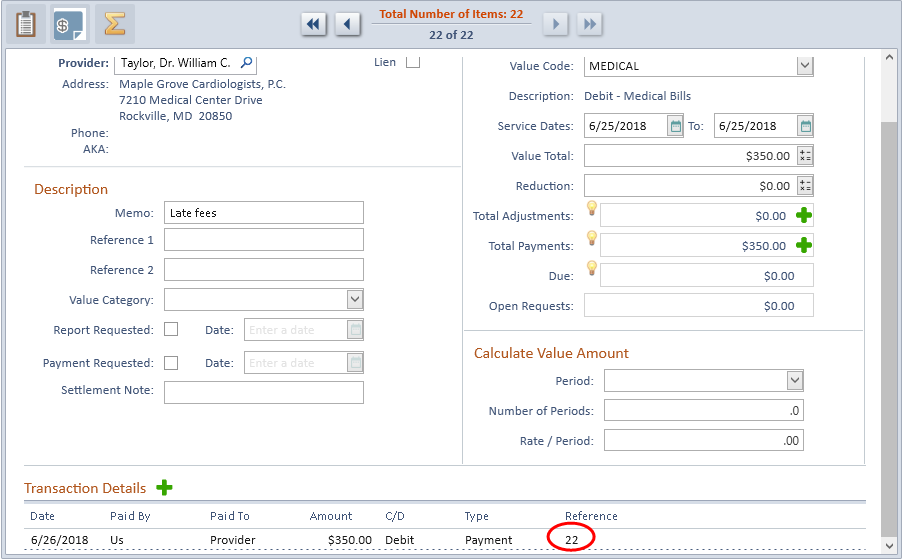
If the check has been printed for the full amount of the Value item, the Due amount will become $0.00 and hide the Request Check button on the gray header band of that item. The request and export check process is now complete.
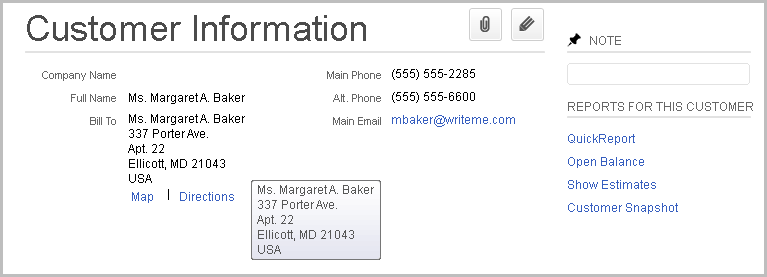
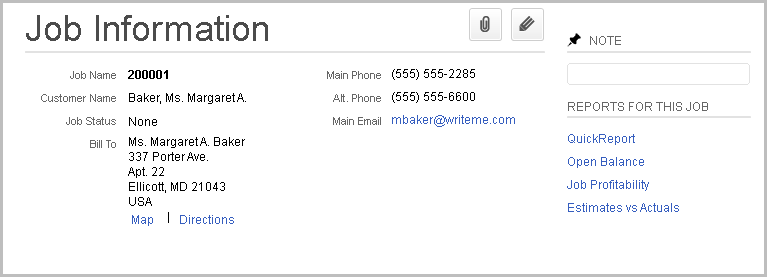
If a Party/Case from an exported deposit is not already linked in QuickBooks, a new Customer/Job will be created. The Needles case number of the exported deposit will become the Job number of the linked Customer/Party.
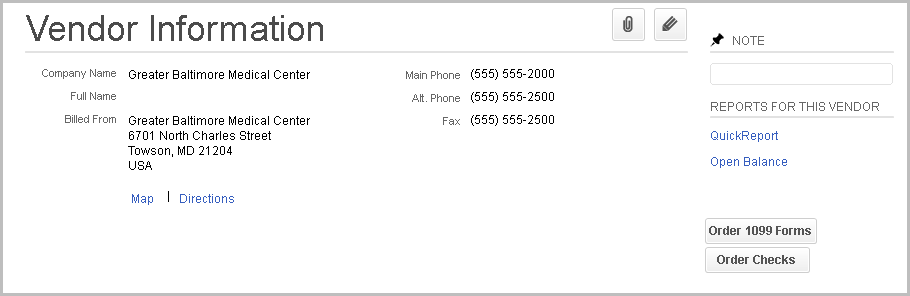
If a Provider from an exported deposit is not already linked in QuickBooks, a new Vendor will be created.
Exported deposits will display under Record Deposits in QuickBooks, which can be accessed from your Company Home Page.
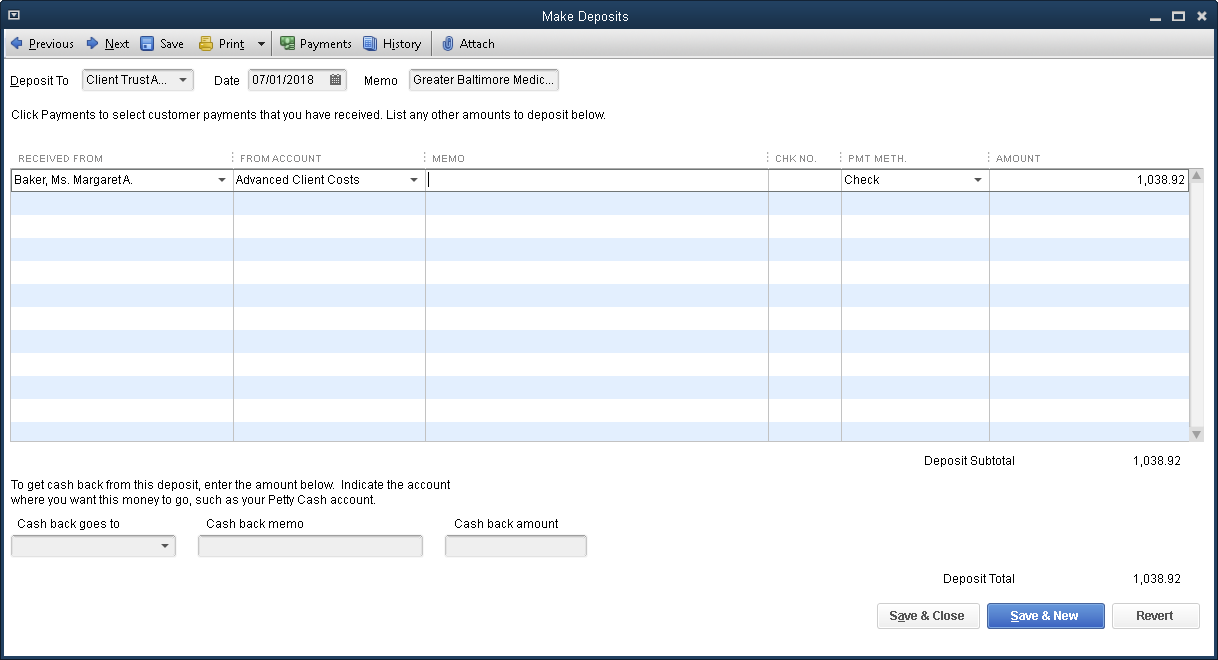
You may also view a list of deposits to be recorded using the Make Deposits option on the Banking menu bar.
Select the desired deposit and ensure the information is correct. You may insert a Memo and check number, if not entered. The entered check number will be sent back to Needles and displayed in the Value Transaction section of the listed credit.
Click the Print button to
print the deposit or deposit summary, if needed.
When finished, click either Save & Close or Save & New (to print another deposit). Any changes will prompt the Recording Transaction message.
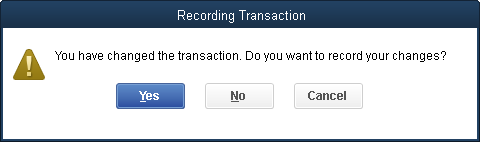
The Make Deposits window will close and record your changes when the Yes button is clicked.
When you return to Needles, navigate to the Value tab of the associated Party/Case. If you are currently on the tab, you will need to click the data refresh banner.
Double-click to open the detail view of the Value item that corresponds to the exported deposit request. A Value Transaction has been created for this item with the printed check deposit number added to the Reference field.
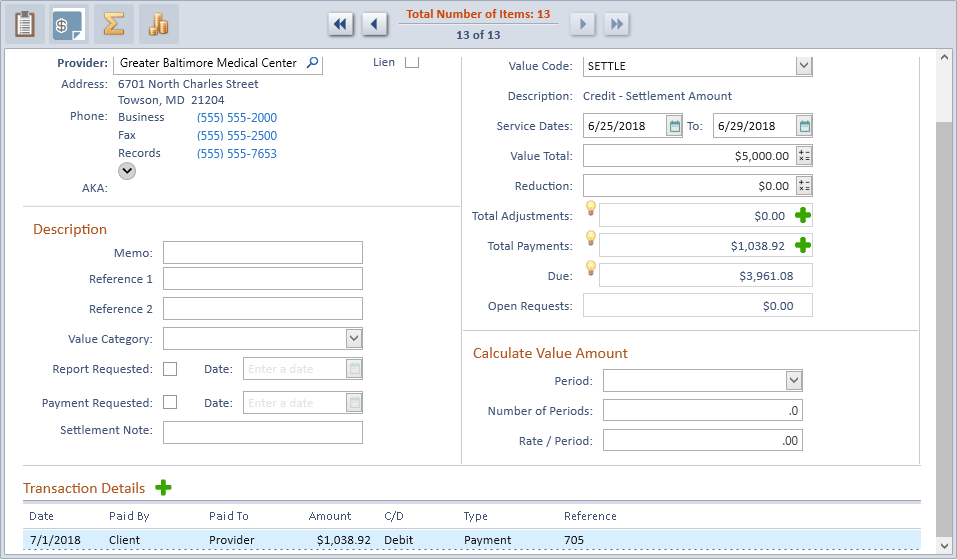
If the deposit has been recorded for the full amount of the Value item, the Due amount will become $0.00 and hide the Request Deposit button on the gray header band of that item. Otherwise, the remaining balance due will display in the Due field, with the Request Deposit button enabled.
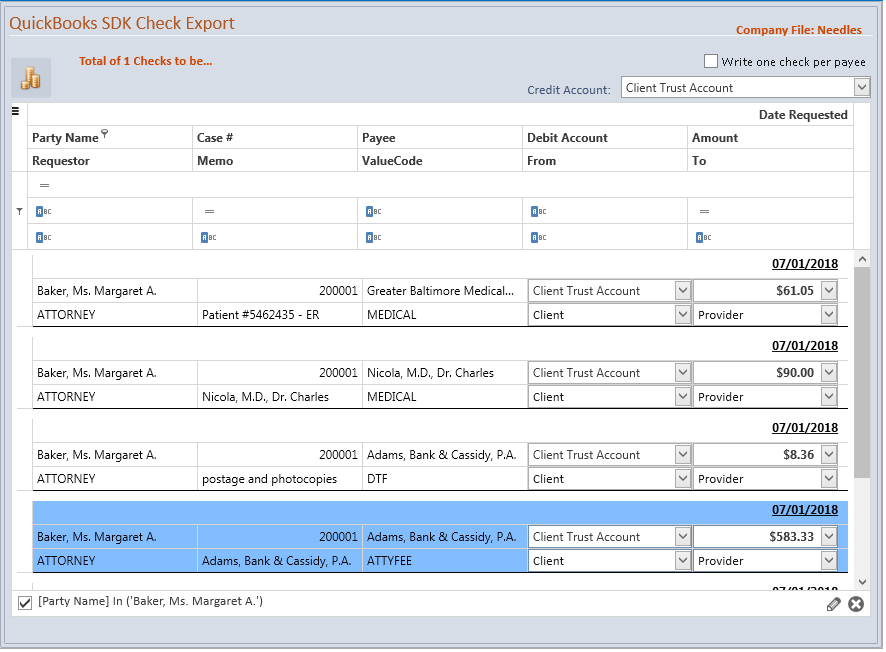
If checks were requested for existing Value items in the case from the Request Deposits tab, the list of selected Value items will display a list of checks in the Check Export tab. Review Exporting Checks topic for more details.
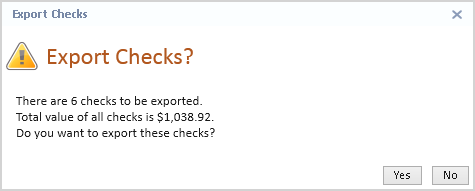
Click the Yes button on the Export Checks message to export the selected checks.
The exported checks will be listed in QuickBooks and are ready to be printed. Once printed, the check number will be sent back to Needles and listed in the Reference field of the Transaction Details for the check amount. The amount of the associated Value item(s) will be deducted from the deposit when checks have been printed in QuickBooks. The Due field for the paid Value items will revert to $0.00. The request and export deposits and linked checks process is now complete.