 on the Directory
ribbon. If the selected group does not have any case members, the
following warning message will display.
Companion Groups with or without case members can only be deleted from the Companion Groups Directory.
To delete a Companion Group,
The Hide/Show List button on the Header Band can be used to toggle the visibility of the Groups Pane.
on the Directory
ribbon. If the selected group does not have any case members, the
following warning message will display. 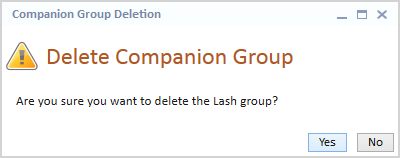
on the
Directory ribbon is clicked, the following warning message will display.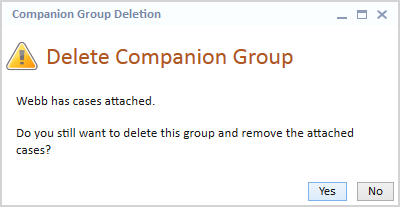
One or more case members can be removed from a single Companion Group in both the Companion Groups Directory and on a Companion Cases tab in a Case Folder.
To remove case members from a Companion Group,
The Hide/Show List button on the Header Band can be used to toggle the visibility of the Groups Pane.
Use CTRL + CLICK to select multiple rows.
 located above the upper right corner of the Group Members grid. If
other case members exist, the Delete Case(s) warning message will
display.
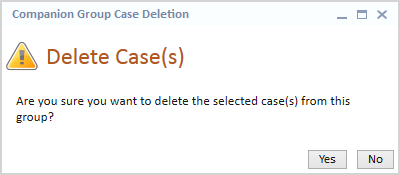
is clicked, a
message will prompt to also delete the Companion Group since a group
cannot be saved without at least one member. 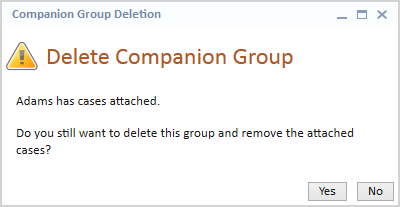
is clicked,
a message will display notifying that when the last remaining member
is disassociated, the group will also be deleted. 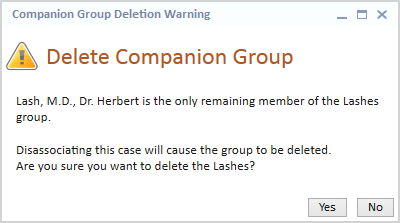
The Companion Group will no longer be listed on the Companion Cases tab for the removed case member(s).