Copying a Note
There may be times when a Note should be added to multiple cases. Needles
allows an item or items from any list tab within a case folder to be copied
to another case or cases using the Copy
Feature. One or multiple items can be copied while in List View. A
single item can be copied to one or multiple cases while in Detail View.
To copy or move items to multiple cases at one time, Mass
Update permissions should be enabled.
To copy one or more Case Note items from the Notes List View to another
case or cases:
- Select the desired Note item to be copied or use CTRL
+ CLICK to select multiple Note items.
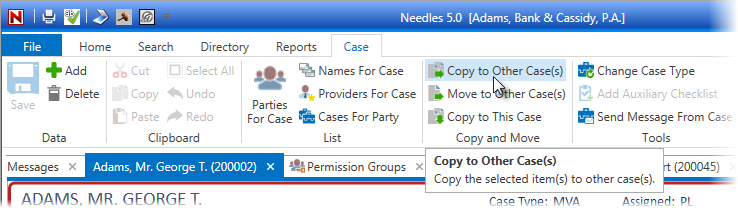
- Click the Copy
to Other Case(s) button on the Case ribbon.
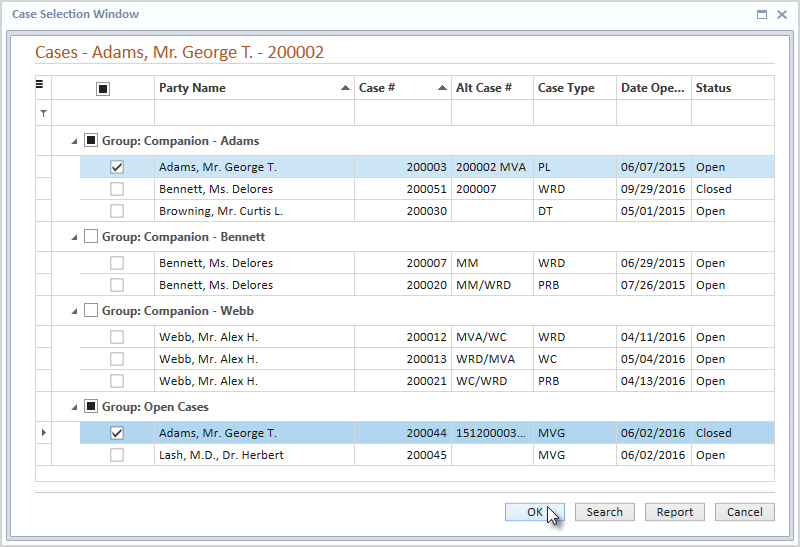
- If the active case is linked to any Companion Groups
or there are other Case Folders currently open, the Case Selection
Window will display showing any companion cases for the active case
and any other cases that are currently open.
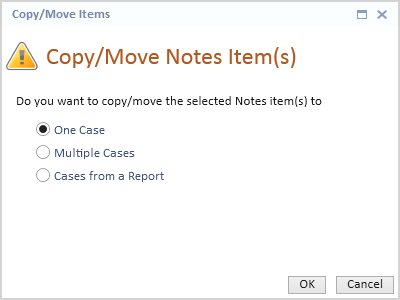
- If the active case is not linked to any Companion Groups
and no other Case Folders are currently open, the Copy/Move Items
message will display the following options: One Case, Multiple Cases,
or Cases from a Report.
- One
Case - If only copying or moving to one case, select
the One Case option,
and click the OK button.
A Search Window will display allowing a search to be performed
for the desired case.
- Multiple
Cases - Selecting the Multiple Cases option will display
an empty Case Selection Window allowing cases to be selected
using the Search or Report options. Clicking on the Search
option allows individual cases to be searched and selected
one at a time, while the Report option will allow a standard
or user defined report to be run and cases to be selected
from the results. After making selections, click the OK button.
- Cases
from a Report - Selecting the Cases from a Report option
displays the Report Selection Window. Select the appropriate
report and click OK to run it. The resulting
cases will be displayed in the Multiple Selection Window allowing
for selection of multiple
cases. To select all cases, click the selection check
box at the top of the selection column. After making selections,
click the OK button.
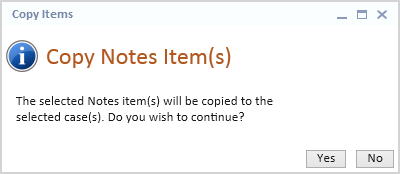
- Once a case or multiple cases have been selected and
the OK button clicked on the Selection Window, the Copy Item(s) message
will display. Click the Yes
button to copy the selected Case Note item(s) or click No
to cancel the copy process.
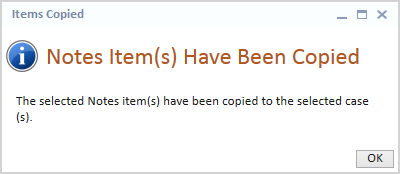
- If Yes was clicked, the selected Case Note items will
be copied to the selected cases and the Items Copied confirmation
message will display.
- Click the OK
button to return to the Case Notes tab.
- Click the Save
button on the Case ribbon to keep your changes.