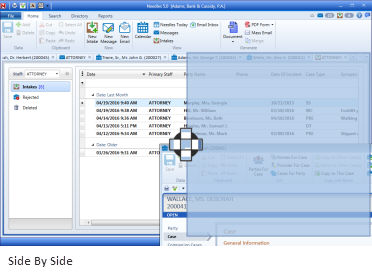
A new tab window will open as you access different cases and areas of the Needles program. An identifying icon and window name will display on the tab. The order of the tab windows can be shifted by dragging the tab horizontally to the desired location. Additionally, tab windows can be displayed side-by-side with another tab window or dragged completely out of the Main Needles window to become a floating window.
To drag a tab window to appear side by side with another tab:
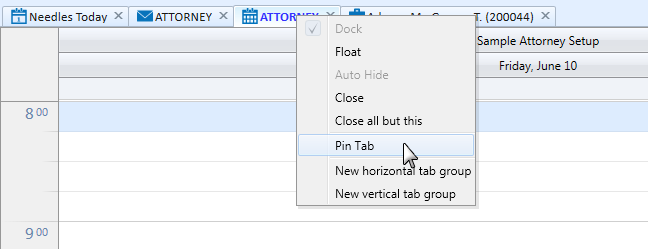
You can also right click the tab of a tab window, and select the New Vertical Tab Group option from the popup menu.
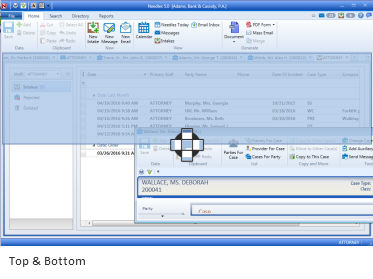
Follow the same steps and select the top or bottom pane in the docking control to display two windows in a top and bottom configuration.
You can also right click the tab of a tab window, and select the New Horizontal Tab Group option from the popup menu.
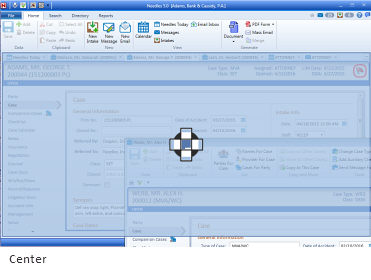
Selecting the center pane in the docking control will return the window to the center stack of tab windows.
You can also pin a tab window. Pinning a window will move it to the far left of your open windows. If you have the Needles Today window open, the pinned tab window will appear just to the right of it.
To pin a tab window, right-click the tab of the tab window you wish to pin, and select the Pin This Tab option from the popup menu.