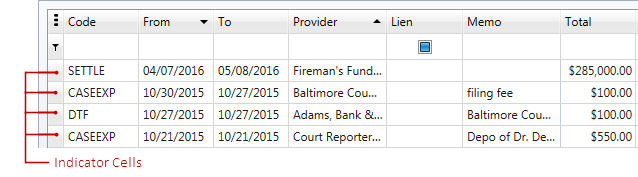
There are many ways in which you can navigate around a grid or select information in a grid using either the mouse or keyboard shortcuts or a combination of both.
To select a row and clear your existing selection, do one of the following:
To select multiple rows while preserving your current selection:
To select a continuous range of rows, while in a currently selected row:
To select all rows in a grid:
To copy selected rows to the clipboard:
To move between cells and rows use the ARROW, TAB, HOME, END, PAGE UP and PAGE DOWN keys. Note that the ARROW, HOME and END keys are used for navigation between rows only when the current cell is not being edited. Otherwise, these keys affect cursor movement within the currently edited cell.
Additional keyboard shortcuts specific to navigation within a grid shown in the table below.
| Keyboard Shortcut | Function |
| CTRL + A | Selects all rows in a grid when pressed while on a selected row |
| CTRL + END | Move to the last row in a grid |
| CTRL + HOME | Move to the first row in a grid |
| CTRL + SHIFT + TAB | Moves cursor out of the current grid and makes the open tab window to the left the active window |
| CTRL + TAB | Moves cursor out of the current grid and makes the open tab window to the right the active window |
| END | Move to the last cell in the current row |
| HOME | Move to the first cell in the current row |
| LEFT ARROW | If a cell is in edit mode, pressing LEFT ARROW moves the cursor to the previous cell if it is positioned at the beginning of the current cell's text, or if the cell's text is selected in its entirety. |
| RIGHT ARROW | If a cell is in edit mode, pressing RIGHT ARROW moves the cursor to the next cell if it is positioned at the end of the current cell's text, or if the cell's text is selected in its entirety. |
| SHIFT + TAB | Moves cursor to the previous cell |
| TAB | Moves cursor to the next cell |