Deleting Value Items
Value items may be deleted from the Value tab in either the list view
or detail view. Delete permissions
on the Value tab are required to delete any Value items from the Value
tab.
Deleting in List View
One or multiple value items can be deleted while in the list view. To
delete one or more Value items from the Value tab list view:
- Select the desired Value item or use CTRL + CLICK to
select multiple Value items.
- Click the Delete
button on the Case ribbon. The Delete Value Entry warning message
will display
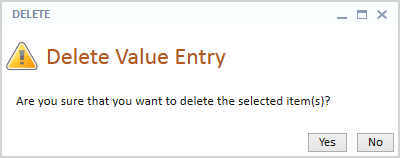
- Click the Yes
button to delete the selected Value items or click No
to cancel the delete process. If Yes was clicked, the selected Value
items will be removed from the Value list view, and the total number
of Value items on the header band will decrease by the number of selected
items.
- Click the Save
button to keep your changes.
Deleting in Detail View
A single Value item can be deleted at one time while in the detail view.
To delete the current Value item while in the detail view:
- Click the Delete
button on the Case ribbon while in the detail view of the Value item
to be deleted. The Delete Value Entry warning message will display.
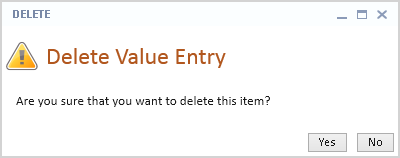
- Click the Yes
button to delete the Value item or click No
to cancel the delete process. If Yes was clicked, the current Value
entry will be deleted and the detail view of the next Value entry
will be displayed. The total number of Value items on the header band
will decrease by one to reflect the deletion.
- Click the Save
button to keep your changes.